
Enernet v2 - User Manual

Version | VER.2 |
|---|---|
Publication date | 20 June 2023 |
Introduction
The Ampd Energy Enernet Platform is an all-in-one online system providing the comprehensive status of each Enertainer to users.
The seamless platform is composed of various kinds of features displaying both real time and historical data for each Enertainer. No matter what user role you are, it gives you a way to oversee and master the general status of each Enertainer easily and remotely.
Detailed way to access to Enernet is shown below.
Navigation menu and Footer
Overview
Navigation menu is a quick way for users to get started with Enernet. While footer provides an overview of cookie policy, privacy policy, platform support service and version with release notes.
Horizontal navigation menu
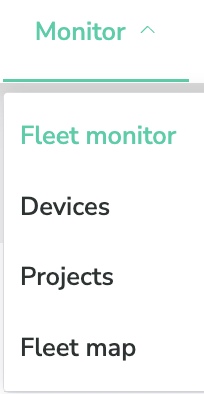
Monitor
Fleet monitor
Devices
Projects
Fleet map
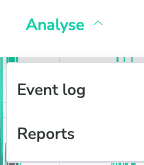
Analyse
Event log
Reports
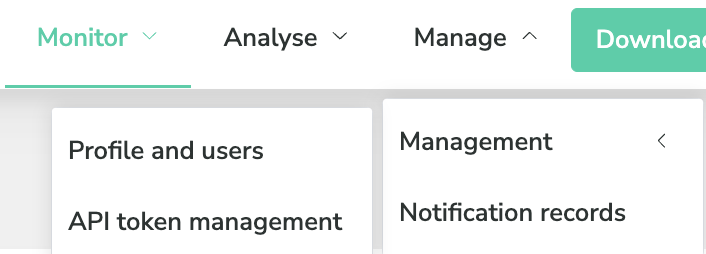
Manage
Management
Profile and users
API tokens
Notification records
Footer
Resources
Cookie policy
Privacy policy
Version (with Release notes)
Purpose
Provides a series of key functions and quick access to different features.
Specification
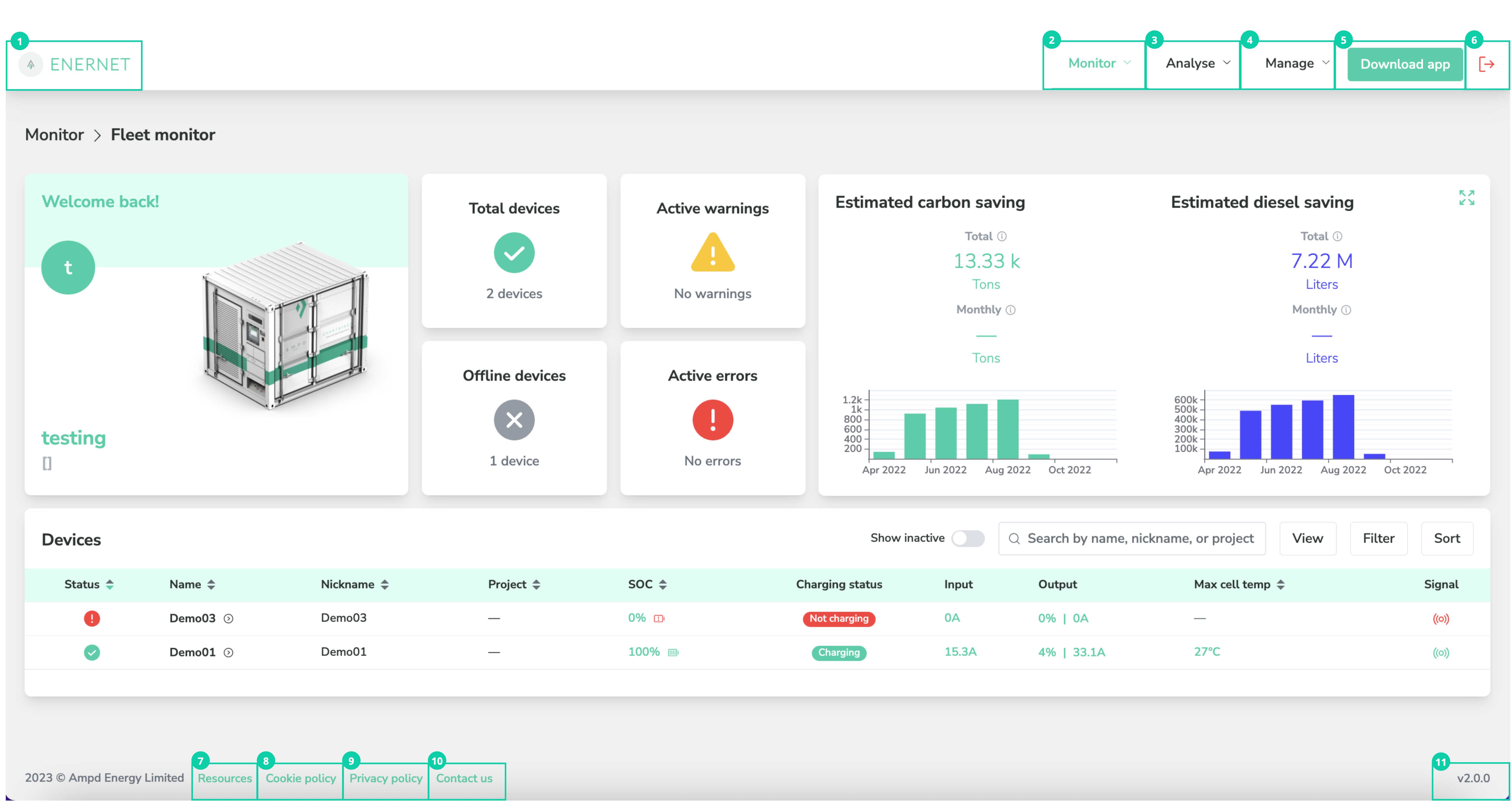
Label | Feature/ Sub feature | Purpose |
|---|---|---|
1 | Homepage icon | Navigates to the homepage fleet map. |
2 | Monitor | Navigates to following pages.
 |
3 | Analyse | Navigates to following pages.
 |
4 | Manage | Navigates to following pages.
 |
5 | Download App button | Displays a pop up that shows the QR code of Enernet app and app descriptions. 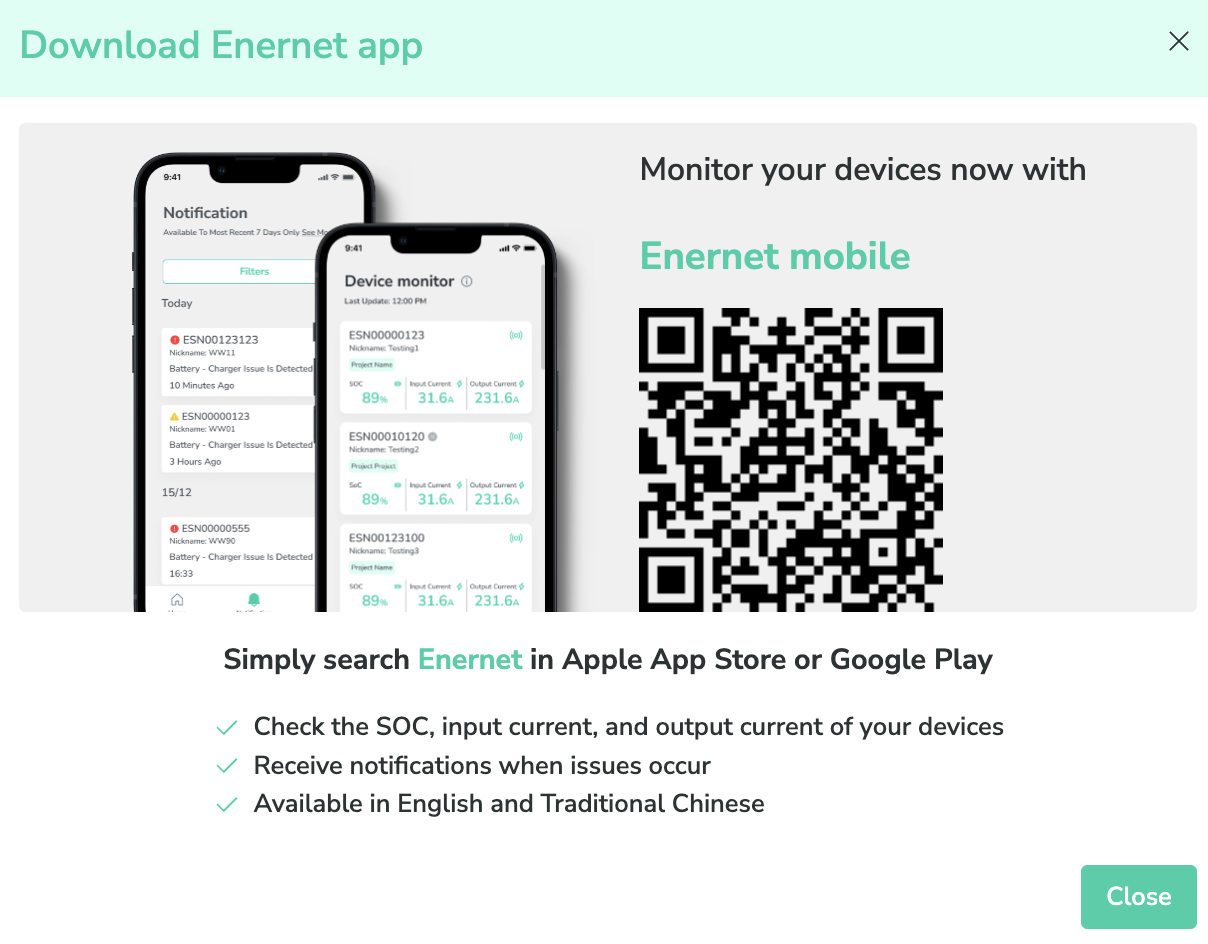 |
6 | Logout | Log out by clicking the logout button. |
7 | Resources | Navigates to a public page that contains a list of Ampd product sheets and user manuals. Detail is referenced in Resources section. |
8 | Cookie policy | Check out the cookie policy of using the Enernet. Detail is referenced in Cookie policy section. |
9 | Privacy policy | Check out the privacy policy of using the Enernet. Detail is referenced in Privacy policy section. |
10 | Contact us | Send feedbacks of contact support and report system bugs. Detail is referenced in Contact us section. |
11 | Version (with Release notes) | Indicates the latest version of Enernet. Detail is referenced in Release notes section. |
Fleet monitor
Overview
Fleet monitor is the homepage of Enernet. It is also an overview of general status of all Enertainers per organisation. It includes the fleet level aggregation of events and carbon & diesel saving values. Besides, it also displays a list of details of all Enertainers.
Fleet level view depends on the user permission level and it varies between admin and general users.
Purpose
Provides a quick overview of status of all Enertainers in fleet level.
Specification
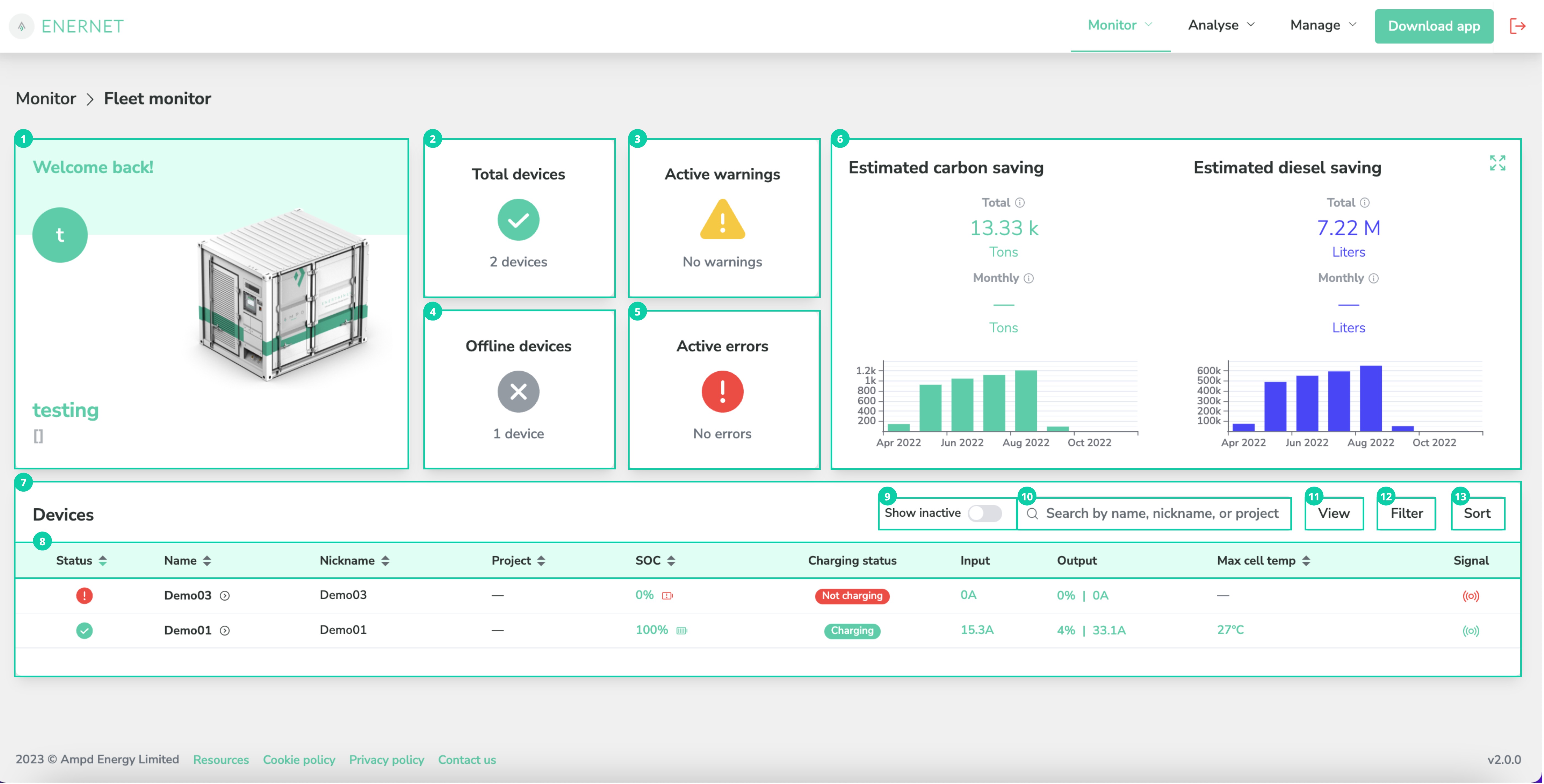
Label | Feature/ Sub feature | Purpose |
|---|---|---|
1 | User info card | Displays user information. |
2 | Total device card | Displays the total number of all the Enertainers which are in normal status in fleet level. |
3 | Active warning card | Displays the number of warnings across your fleet. |
4 | Offline device card | Displays the total number of all the Enertainers which are offline in fleet level. Offline devices refers to devices that are in the active state with red or gray signal. |
5 | Active error card | Displays the number of errors across your fleet. |
6 | Estimated carbon & diesel saving card | Displays total and monthly saving values of carbon. Displays total and monthly saving values of diesel. Enter into full screen to check out saving values by the selected time period. |
7 | Device status card | Provides a series of command buttons to let you have a quick access to particular Enertainer. Displays the status and info of all the Enertainers in terms of SOC, charging status, input current, output current, max temp, and connection signal. |
8 | Data control tab | Displays 12 columns in terms of the following themes. Each theme is followed by its definition. Click the arrow to sort the device data.
Consists of 3 types of statuses according to the active events/ alarms triggered in devices.
Name of Enertainer.
Nickname of Enertainer.
Project that use a single/ multiple Enertainers.
State of Charge of Enertainer that displays in 3 types.
Real time charging status of Enertainer that displays in 2 types.
Refer to the power, voltage and average input current values.
Refer to the maximum output current, power, voltage and maximum output load in gauge.
Maximum temperature (°C) of system battery of Enertainer that displays in 3 types.
Internet connection of Enertainer that displays in 2 types.
Location where the Enertainer stay.
Owner of Enertainer.
Maintenance support plan that Enertainer is carried.
Model of Enertainer. Data columns with asterisks are not default to be shown in tab. Users can enable them in View button. |
9 | Show inactive toggle switch | Toggle on to show the inactive Enertainers. Toggle off to show the active Enertainers. Definition of inactive Enertainer
|
10 | Search field | Accesses to the specific Enertainer by typing device name / nick name / project name. |
11 | View device button | Selects specific conditions of columns to view the Fleet monitor status. Below picture shows default view of fleet table. 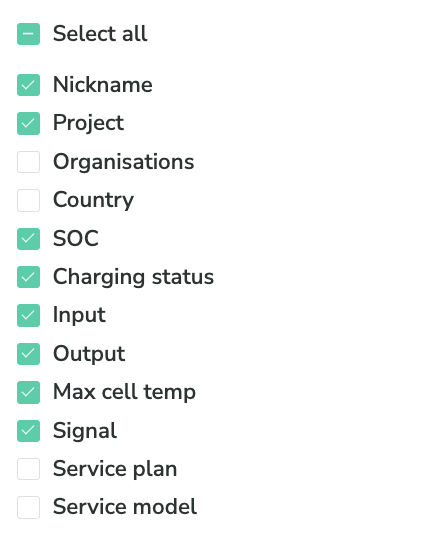 |
12 | Filter button | Filters the Enertainers when specific condition is set. SOC, Max cell temp, Device status, Statuses, Countries, Organisations, and Projects can be used for filtering. Click the reset button to change into default condition. 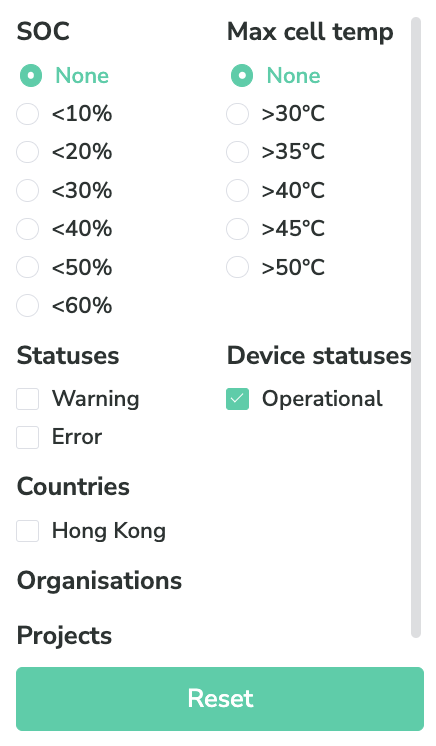 |
13 | Sort button | Sorts the device list in ascending or descending order. Name, Nickname, SOC, Max cell temp, Service plan, Service model, Country, Organisations, and Projects can be used for filtering. 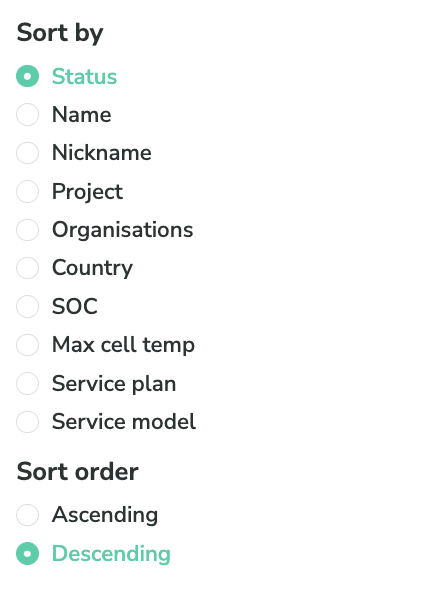 |
Devices
Overview
Devices page is the homepage of Device Monitor and contains a list of Enertainers in fleet level.
Fleet level view depends on the user permission level and it varies between admin and general users.
Purpose
Provides a quick way to search for the specific Enertainer out of the fleet.
Specification
.jpg?inst-v=07c8cab3-ce82-4344-a9f5-d63853eea585)
Label | Feature/ Sub feature | Purpose |
|---|---|---|
1 | Show details toggle switch | Toggle on to show the real time status of Enertainer on device card in terms of SOC, Load, Daily energy, Max temp, Input current and Output current. 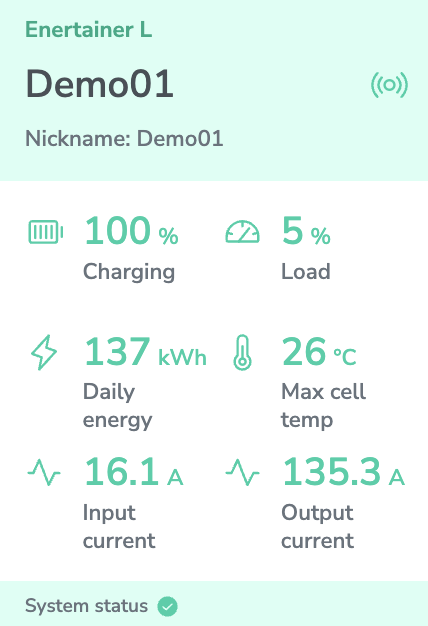 Toggle off to hide the real time status of Enertainer. |
2 | Show inactive toggle switch | Toggle on to show the inactive Enertainers. Toggle off to show the active Enertainers. Definition of inactive Enertainer
|
3 | Search field | Accesses to specific Enertainer by typing device name/ nick name/ project name. |
4 | Filter button | Filters the Enertainers when specific condition is set. SOC, Max cell temp, Device status, Statuses, Countries, Organisations, and Projects can be used for filtering. Click reset button to change into default condition. 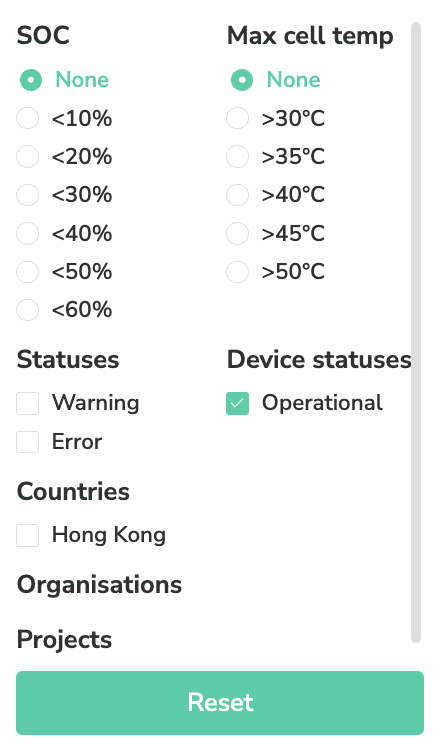 |
5 | Sort button | Sorts the device list in ascending or descending order. SOC, Max cell temp, Device status, Statuses, Countries, Organisations, and Projects can be used for sorting. 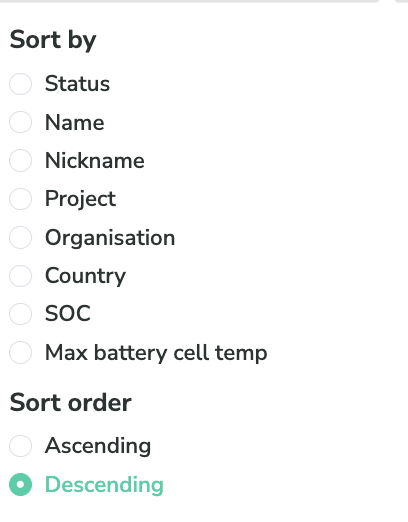 |
6 | Device card | Displays basic information of specific Enertainer when Show details toggle switch is off. Displays real time status of specific Enertainer when Show details toggle switch is on. |
7 | Model | Indicates the model and size of Enertainer. |
8 | Name | Indicates the name of Enertainer. |
9 | Nickname | Indicates the nickname of Enertainer. |
10 | Signal | Indicates the last heard time of the Enertainer. |
11 | System status | Indicates the most severe current alarm of the Enertainer. |
Device monitor
Overview
Device monitor is the detailed overview of Enertainer performance. It consists of 11 parts to evaluate both real time and historical status.
Real time status
Device info
Battery
Input current
Output current
System status
Historical status
Event log
Device report
Hybrid status
Omnigraph
Temperature
Energy
Estimated carbon & diesel saving
Purpose
Provides a detailed way to study the performance of each Enertainer and investigate the device issues.
Specification
.jpg?inst-v=07c8cab3-ce82-4344-a9f5-d63853eea585)
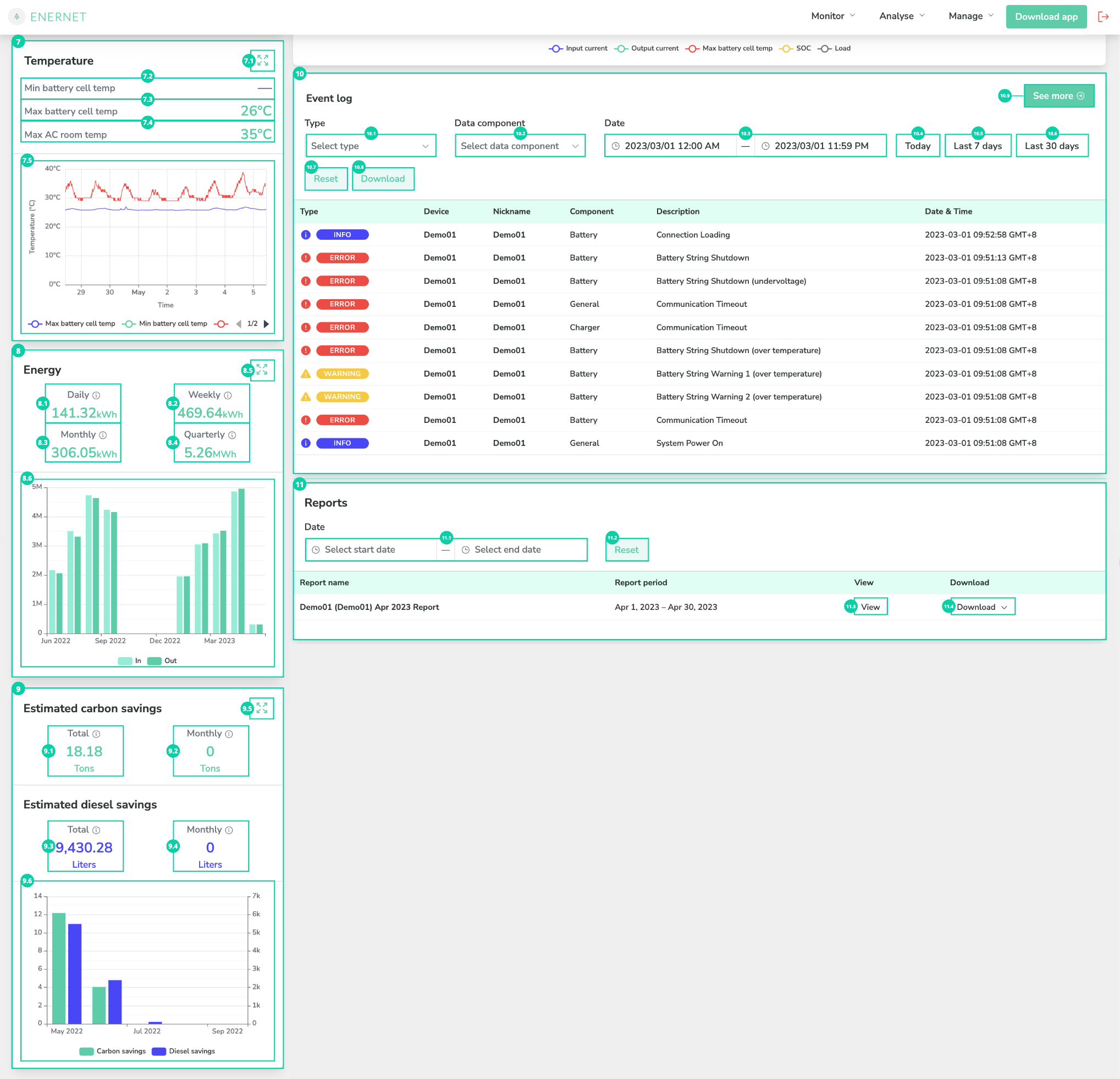
Label | Feature/ Sub feature | Purpose |
|---|---|---|
1 | Device info card | Displays the device and site information. |
1.1 | Model | Indicates the model of Enertainer. |
1.2 | Name | Indicates the name of Enertainer. |
1.3 | Signal icon | Indicates the last heard time of Enertainer. |
1.4 | Nickname | Indicates the nickname of Enertainer. |
1.5 | Project | Indicates the project that uses the Enertainer. |
1.6 | Project owner | Indicates the organization that the Enertainer belongs to. |
1.7 | Location | Indicates where the Enertainer locates. Click the icon below to enter the device map.  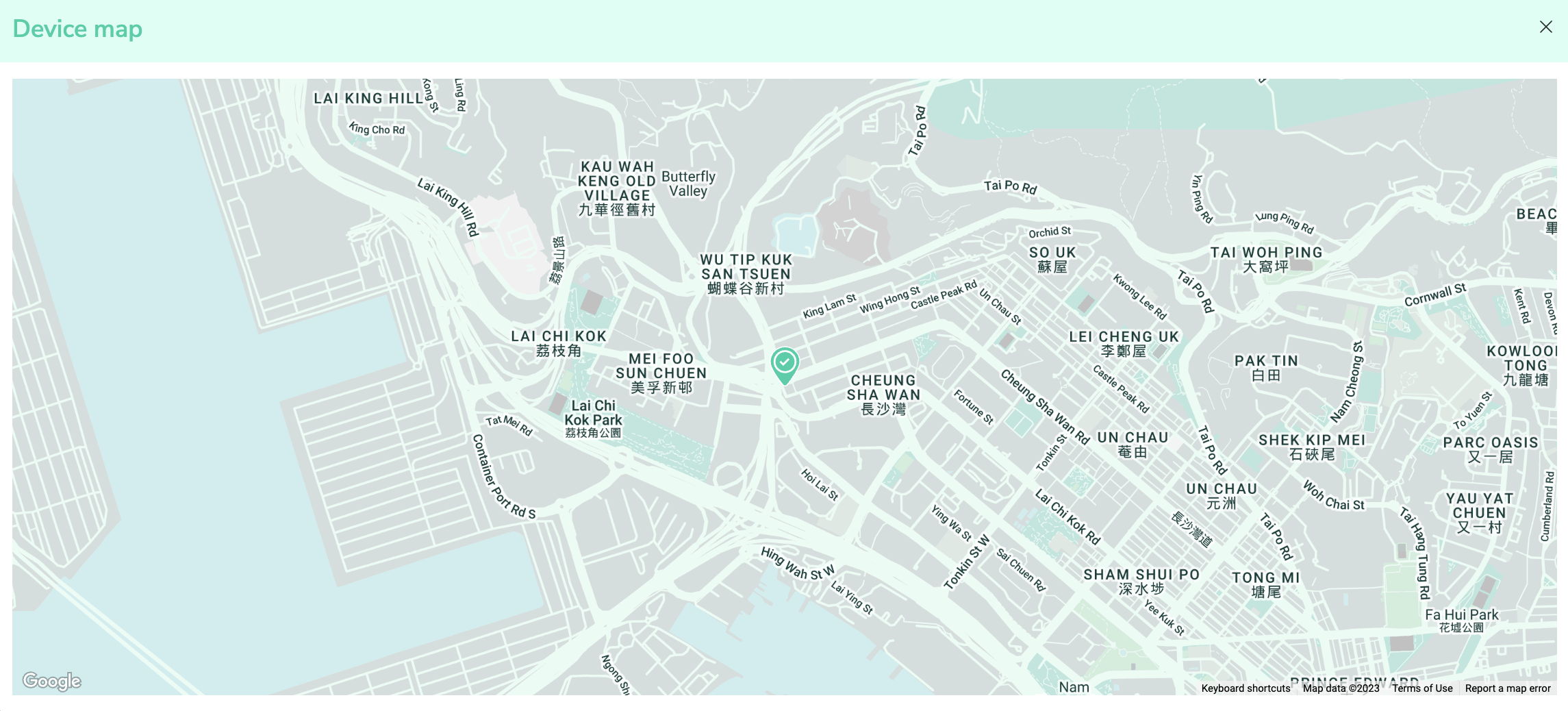 |
1.8 | Next maintenance | Indicates the date (DD/MM/YY) for next maintenance. Click the icon below to check out maintenance detail and service plan.  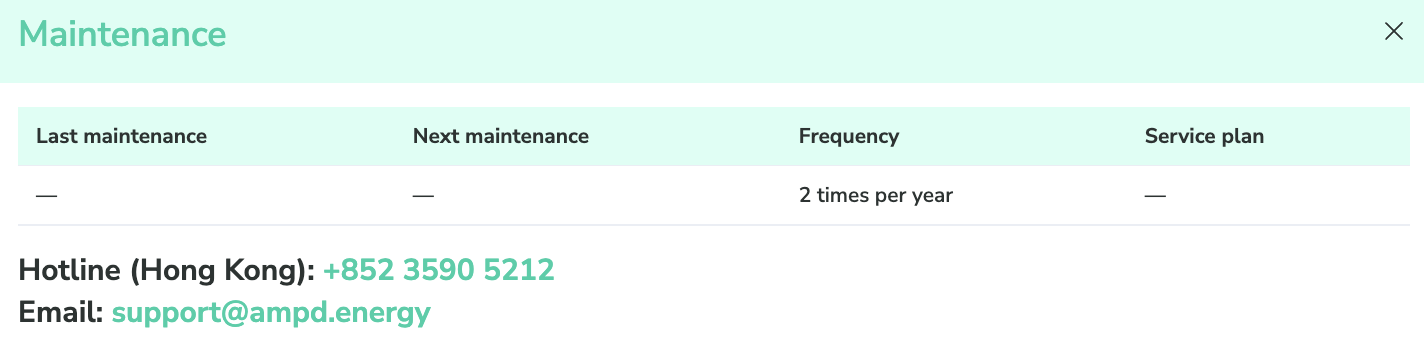 |
1.9 | (Rental date end) | This is for rental Enertainer only. Indicates the date (DD/MM/YY) of rental contract. Click the icon below to check the contract start date and end date.  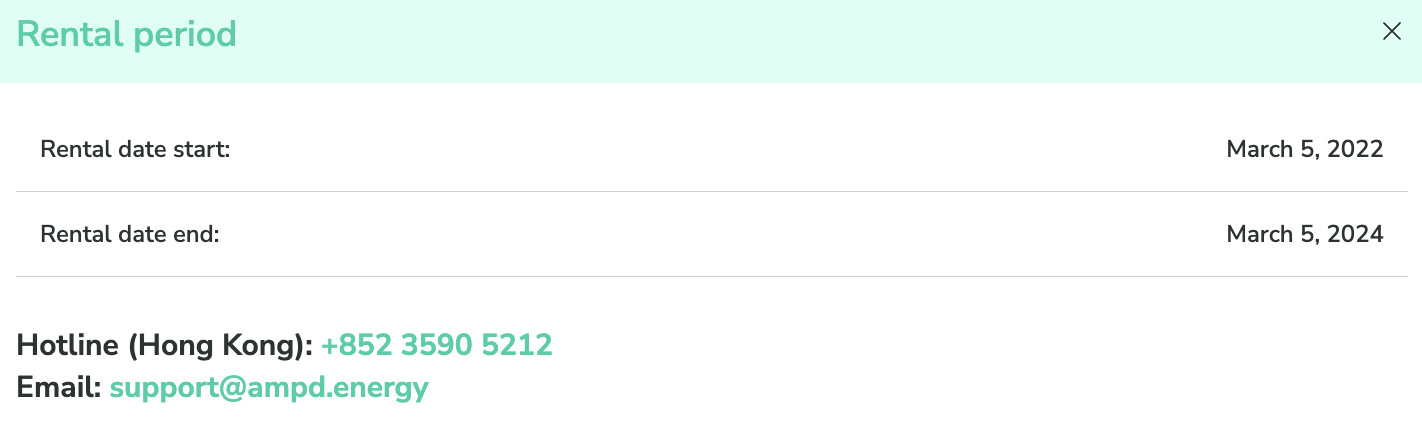 |
1.10 | (SMS receiver) | Indicates the name of notification and masked registered mobile number. It would only be shown if SMS notification is enabled. |
2 | Battery card | Displays the real time battery status. |
2.1 | Status |
Displays real time charging status of Enertainer in 2 types.
|
2.2 | SOC |
Displays State of Charge of Enertainer that displays in 3 types.
|
3 | Input current card | Displays the power, voltage and average input current values counted in 3 phases by graph. |
3.1 | Power |
Displays the incoming power (kW) received by the Enertainer. |
3.2 | Voltage |
Displays the incoming voltage (V) received by the Enertainer. |
3.3 | Current |
Displays the average incoming current (A) received by the Enertainer, followed by the three-phase currents. |
4 | Output current card | Displays the maximum output current, power, voltage and maximum output load in gauge. |
4.1 | Voltage |
Displays the voltage (V) outputted by the Enertainer. |
4.2 | Current |
Displays the maximum value among the three-phase currents (A) outputted by the Enertainer. |
4.3 | Power |
Displays the power (kW) outputted by the Enertainer. |
4.4 | Load |
Displays the current output load (%) of the Enertainer. |
5 | System status card | Indicates the real time general status of the Enertainer. When system status is in healthy status, it shows green check. When system status is in error and warning status, it shows
|
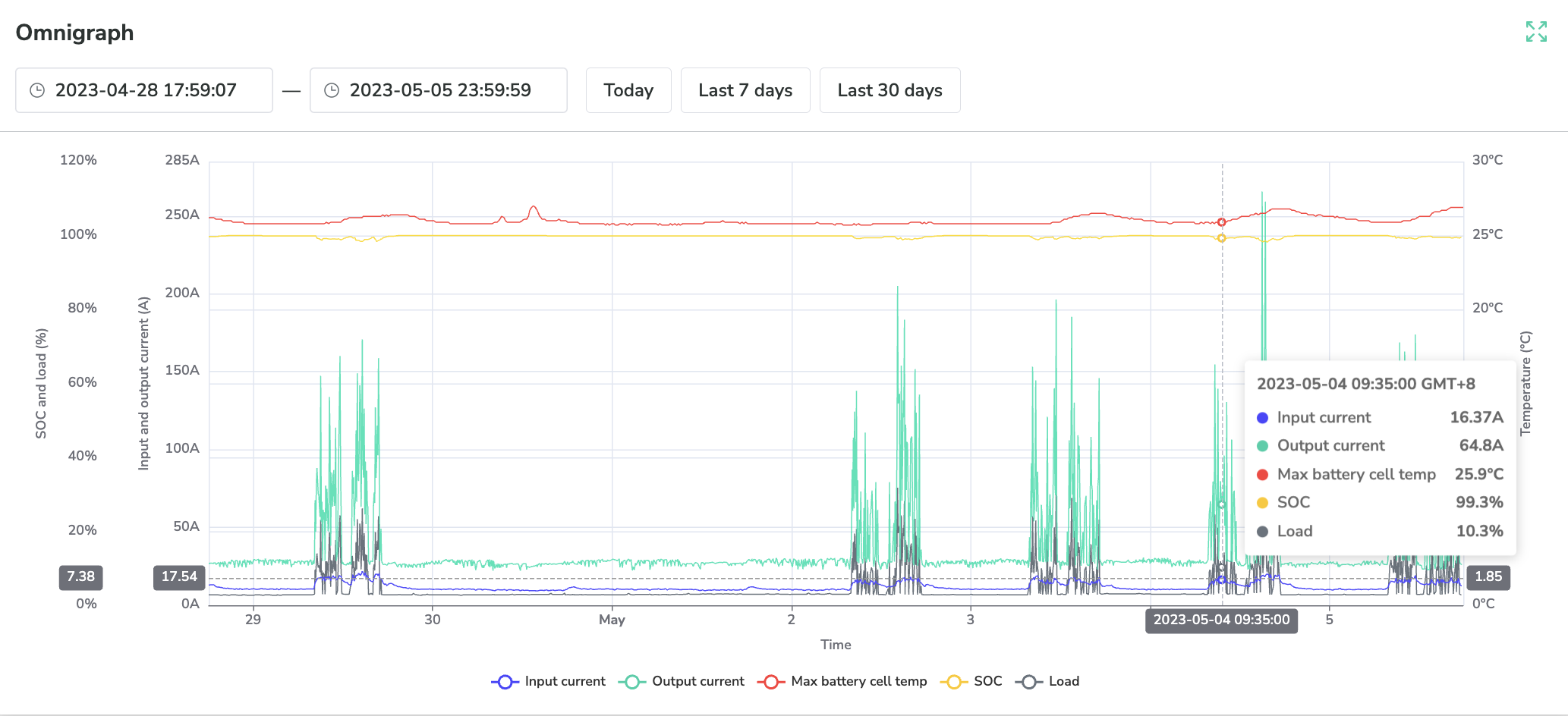
6 | Omnigraph | Displays the integrated data graph with input current, output current, max temp, SOC, and load. |
6.1 | Date picker | Selects a specific time period to view the data. |
6.2 | Today button | Displays the today’s data. |
6.3 | Last 7 days button | Displays the data in past 7 days. |
6.4 | Last 30 days button | Displays the data in past 30 days. |
6.5 | Full screen icon | Enter into a full screen of data graph with same setting. |
6.6 | Omnigraph | An integrated time-series data graph displaying an Enertainer’s input current, output current, maximum cell temperature, state of charge, and load. Displays 5 types of data in one graph.
X axis is time period. Left Y axis is SOC, load, Input current, and output current. Right Y axis is temperature. When hovering on graph, it displays the data in a specific resolution. Data in different date ranges would have different resolutions.
 |
7 | Temperature card | Displays real time relationship between minimum battery cell temp, maximum battery cell temp, and AC room temp. |
7.1 | Full screen icon | Enter into full screen of data graph with same setting. |
7.2 | Min battery cell temp |
Displays the minimum temperature (°C) recorded across all battery cells of the Enertainer. |
7.3 | Max battery cell temp |
Display the maximum temperature (°C) recorded across all battery cells of the Enertainer. |
7.4 | Max AC room temperature |
Displays the temperature (°C) recorded in the AC room of the Enertainer. |
7.5 | Temperature graph | Displays minimum battery cell temp, maximum battery cell temp, and maximum AC room temperature by graph. |
8 | Energy card | Displays energy in and out data in specific time period. When hovering on graph, it displays the data specially within time period selected. |
8.1 | Daily | Displays aggregated energy out (kWh or mWh) per day. Definition of daily energy out Aggregated value counting on the view day. |
8.2 | Weekly | Displays aggregated energy out (kWh/ mWh) per week. Definition of weekly energy out Aggregated value counting from Sunday to Saturday every week. |
8.3 | Monthly | Displays aggregated energy out (kWh/ mWh) per month. Definition of monthly energy out Aggregated value counting from 1st of X to end of X. X: specific month |
8.4 | Quarterly | Displays aggregated energy out (kWh/ mWh) per quarter. Definition of weekly energy out Aggregated value counting from 1st of X to end of Y. X: specific first month Y: specific third month follows X. |
8.5 | Full screen icon | Enter into full screen to view the energy in and out values in bar charts when selecting specific time period. Click the reset button to reset to default date to view the data. |
9 | Estimated carbon saving and diesel saving card | Displays total and monthly carbon saving (tons) by card and graph. Displays total and monthly diesel saving (litres) by card and graph. |
9.1 | Total (carbon saving) | Displays total carbon saving (tonnes). Definition of total carbon saving Aggregated value counting since the Enertainer is launched. |
9.2 | Monthly (carbon saving) | Displays monthly carbon saving (tonnes). Definition of monthly carbon saving Aggregated value counting from 1st of X to end of X. X: current month |
9.3 | Total (diesel saving) | Displays total diesel saving (litres). Definition of total diesel saving Aggregated value counting since the Enertainer is launched. |
9.4 | Monthly (diesel saving) | Displays monthly diesel saving (litres). Definition of monthly diesel saving Aggregated value counting from 1st of X to end of X. X: current month |
9.5 | Full screen icon | Enters into full screen to view the carbon and diesel saving values in bar charts when selecting a specific time period. Download the general guidelines on the estimated carbon & diesel savings calculations (PDF). Click the reset button to reset to default date to view the data. |
10 | Event log card | Displays a list of 20 events by 6 columns after setting the filtered conditions in drop down menus and date picker. Events from system BMS, string BMS and ESM are all included.
|
10.1 | Type drop down menu | Selects to view Event log by all types, which including error, warning, and info. |
10.2 | Data component drop down menu | Selects component of events by all components / general / battery / charger / fire suppression system. |
10.3 | Date picker | Selects a specific time period to view the data. |
10.4 | Today button | Displays the today’s data. |
10.5 | Last 7 days button | Displays the data in past 7 days. |
10.6 | Last 30 days button | Displays the data in past 30 days. |
10.7 | Reset button | Reset to the default date to view the data. |
10.8 | Download button | Download the CSV file of event data in time period selected. |
10.9 | Detailed mode toggle (Detailed Event log) | Navigates to event log list. Similar to Event log list, drop down menus and date picker are available. Source drop down menu is exclusive for event log only. Displays a list of 20 events by 6 columns after setting the filtered conditions in drop down menus and date picker. Events from system BMS, string BMS and ESM are all included.
|
11 | Device report | Displays a list of 10 reports by 5 columns available for download and view online.
|
11.1 | Date picker | Select a specific time period to view the data. |
11.2 | Reset button | Reset to the default date to view the data. |
11.3 | View button | Opens the selected report in PDF. Click the navigation bar to zoom in and out, download and print, etc. 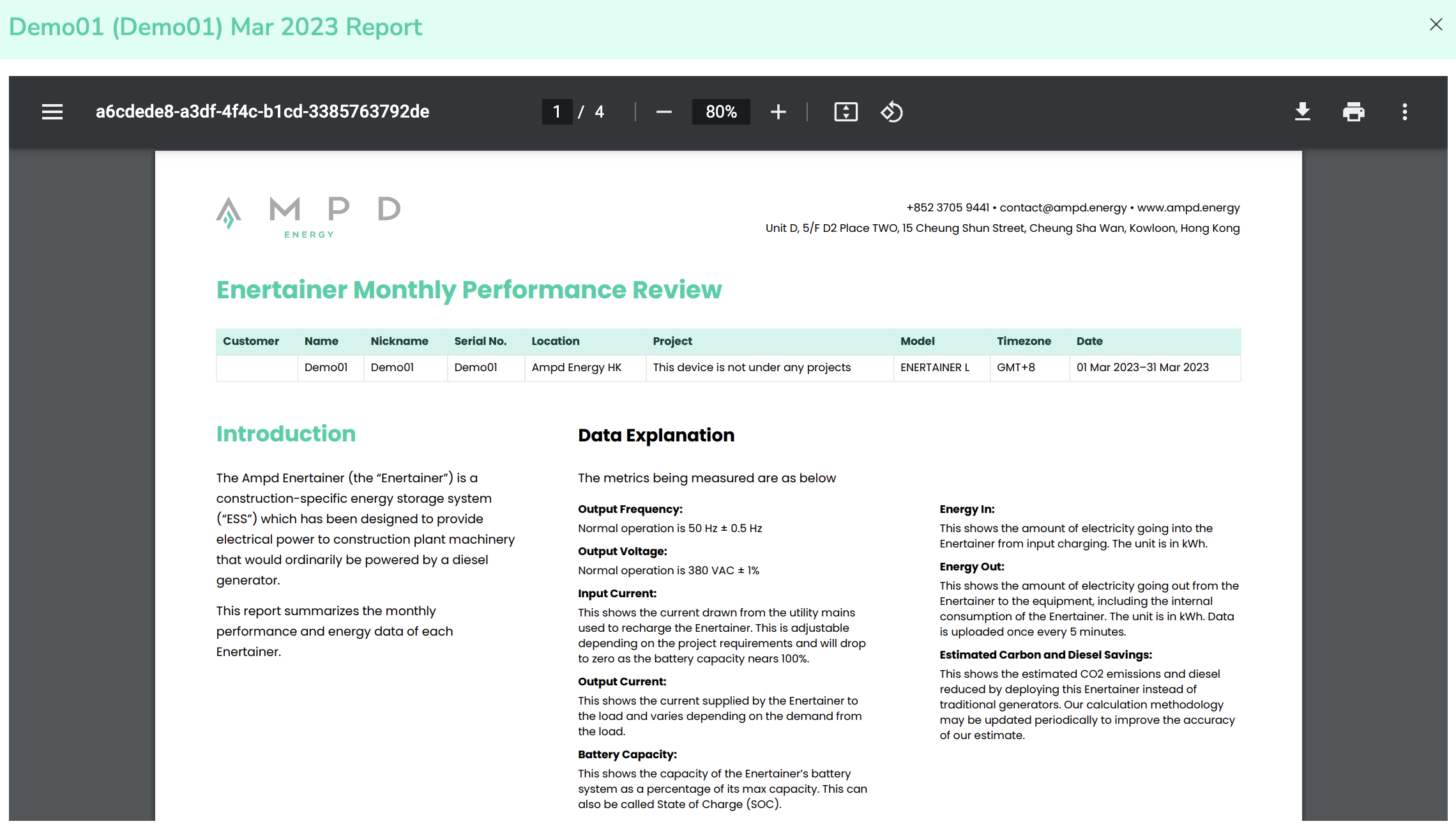 |
11.4 | Download button | Selects the file format, PDF/ CSV/ JSON to download. 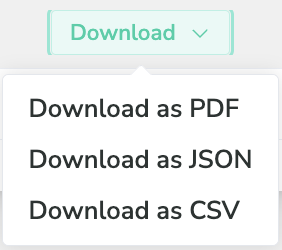 |
Projects (coming soon)
Overview
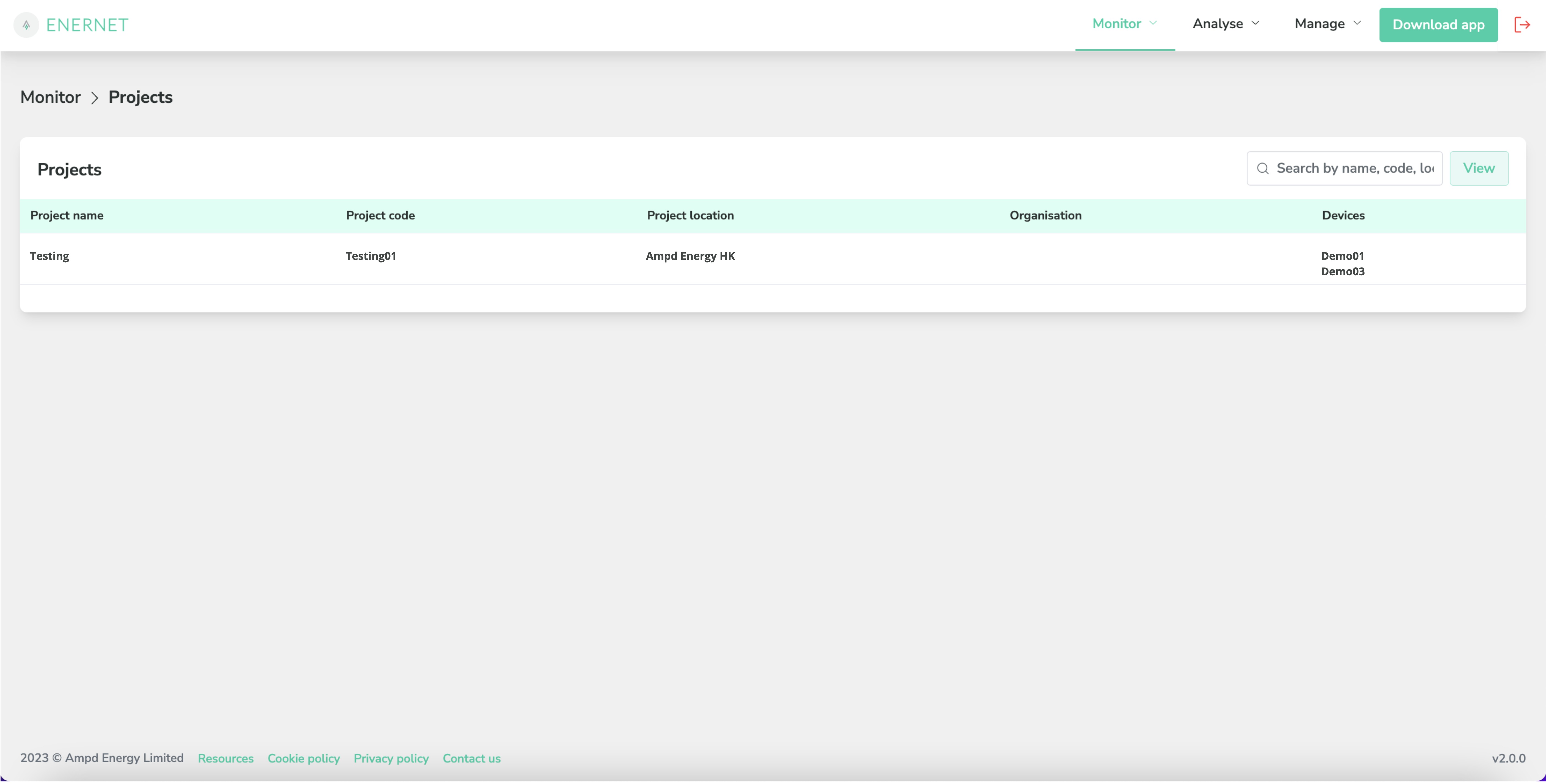
Projects page is the homepage of Project Monitor and contains a list of Enertainers in project level. It allows users to search specific projects and devices in a summary page.
Project level view depends on the user permission level and it varies between admin and general users.
Purpose
Provides an overview of projects and the relevant devices in each project.
Specification
Label | Feature/ Sub feature | Purpose |
|---|---|---|
1 | Project card | Displays a list of projects from all the organisations and total number of projects. Scroll up/ down/ left/ right to navigate within the card.
|
Fleet map
Overview
The overview of fleet map is based on the alarm status of each Enertainer. Each Enertainer is displayed as a pin in any of the 3 statuses. 3 alarm statuses are presented in 3 different colors on map.
Error
Red pin
Warning
Yellow pin
Normal
Green pin
Definition of alarm status
Given that there is / are
Only one active alarm type, the status would follow the alarm type.
More than one active alarms types, error status would be presented first.
No more active alarms/ active alarms resolved, the status would turn into Normal.
Purpose
Provides a quick way to oversee the general real time status of each Enertainer and check out the device detail by selecting a specific Enertainer.
Specification
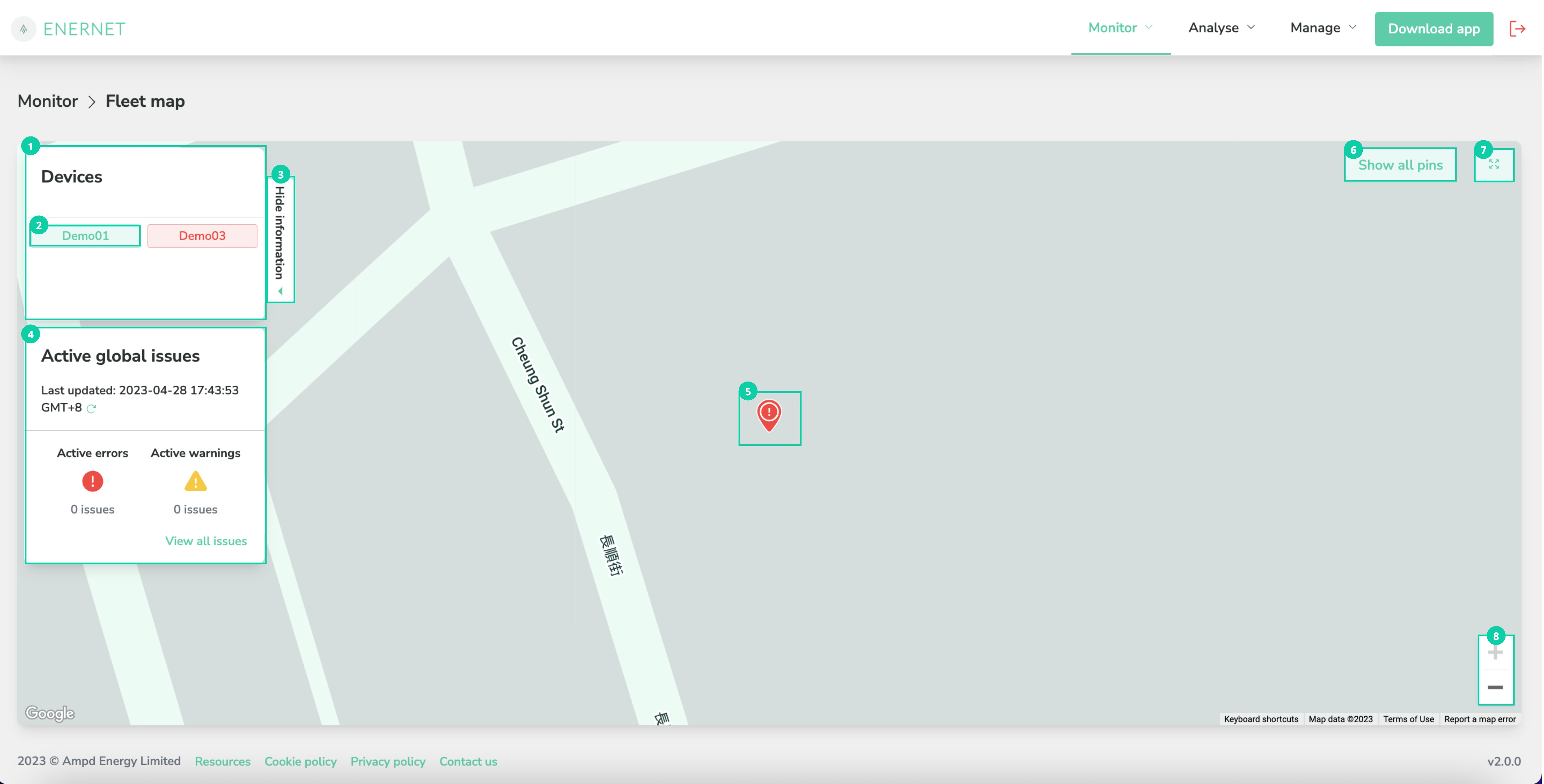
Label | Feature/ Sub feature | Purpose |
|---|---|---|
1 | Device info card | Provides a quick access button to select particular Enertainer. |
2 | Device button | Navigates to the active status and event of selected device. |
3 | Hide information tab | Collapses the device card and event card. |
4 | Active global events card | Displays the real time events/ alarms in terms of error and warning. |
5 | Pin | Navigates to the active status and event of selected device by clicking the pin. When the organisation has more than one Enertainer, a cluster of pins with number would be shown on the map. It refers to the total number of Enertainers in specific area. Click to show more Enertainers in that area. |
6 | Show all pins button | Reset to show all Enertainers on Fleet map. |
7 | Full screen icon | Enters into a full screen view. |
8 | Zoom in & out button | Zoom in / zoom out of the map. |
Event log
Overview
Event log is the overview of what and when causes the downtime of the Enertainer. It dives deep from resolution status and uptime status summary to detailed Event log list.
Purpose
Provides a big picture of system status of each Enertainer in historical period.
Specification
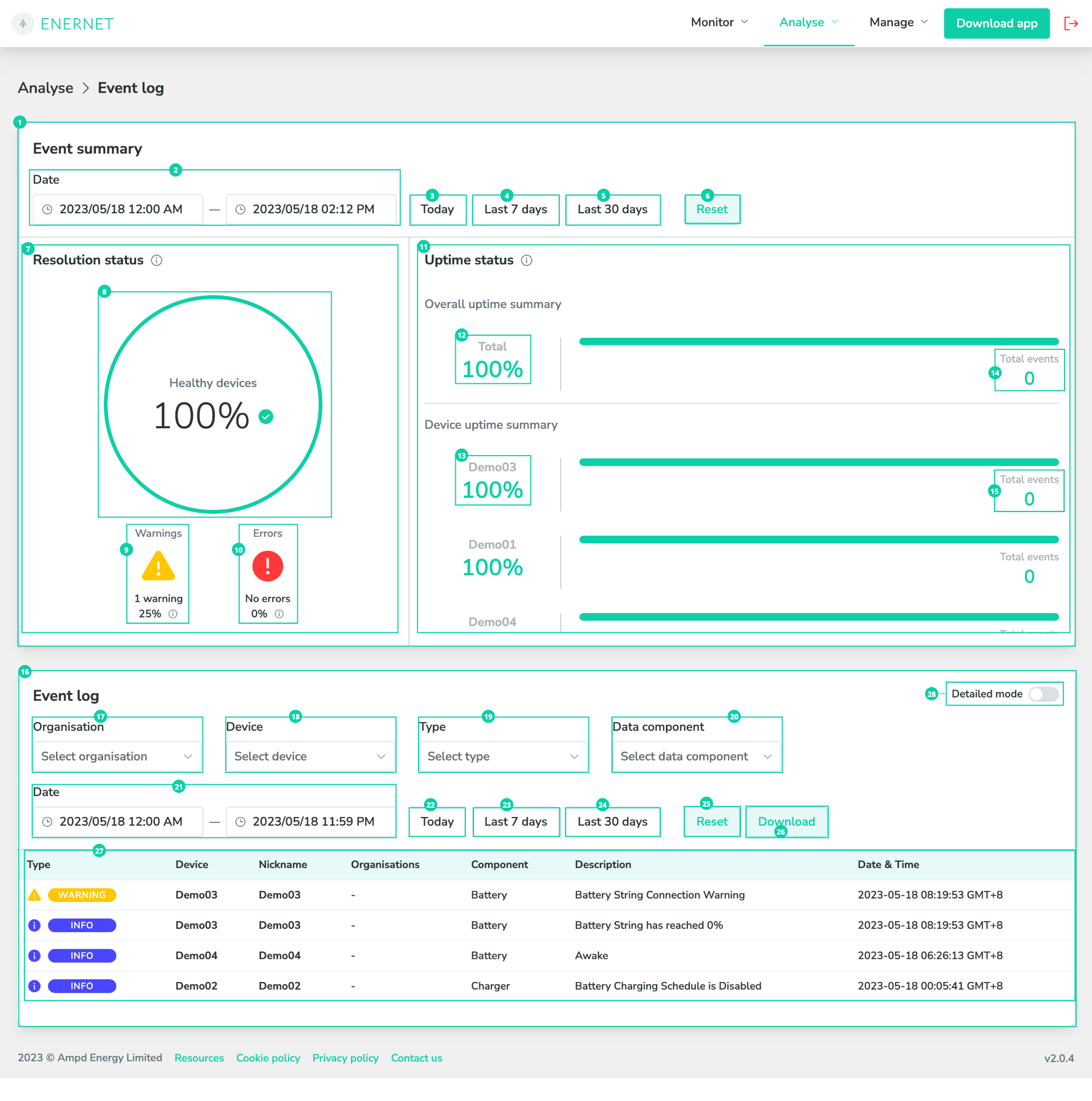
Label | Feature/ Sub feature | Purpose |
|---|---|---|
1 | Event summary card | Consists of resolution status and uptime status. |
2 | Date picker for summarised status | Selects a specific time period to view the resolution status and uptime status. |
3 | Today button | Displays the today’s statuses. |
4 | Last 7 days button | Displays the statuses in last 7 days. |
5 | Last 30 days button | Displays the statuses in last 30 days. |
6 | Reset button | Reset to the default date to view the statuses. |
7 | Resolution status | Displays the number of events have been resolved (%) in the time period selected. |
8 | Healthy device chart | Displays the healthy device percentage by pie chart (%). Definition of an unhealthy device Devices with the following errors in a given period are classified as unhealthy.
|
9 | Warning icon | Displays the total number of warnings that happened in the time period selected (whole number). Displays the proportion of warnings from total types of events in the time period selected (%). |
10 | Error icon | Displays the total number of errors that happened in the time period selected (whole number). Displays the proportion of errors from total types of events in the time period selected (%). |
11 | Uptime status | Displays the device status (%) that the Enertainers are operating normally. Definition of uptime status Downtime = (Time of Enertainer with critical alarms (the alarms that we specified in the manual)) / Selected time range Uptime status = 100 - downtime status Devices with the following errors in a given period are classified as downtime.
|
12 | Overall uptime summary | Displays the status in fleet level by bar chart (%). |
13 | Device uptime summary | Displays the status of each Enertainer by bar chart (%). Scroll up and down to check through the device uptime summary of each Enertainer. |
14 | Overall total events | Displays the total number of events that happened in the time period selected. |
15 | Device total events | Displays the total number of events from each Enertainer that happened in the time period selected. Scrolls up and down to check through the device uptime summary of each Enertainer. |
16 | Event log card | Displays a list of events in default past 7 days. |
17 | Organisation drop down menu | Selects the organisations / relationships that access is granted. Remark: account with user permission does not have this function |
18 | Device drop down menu | Selects the devices that access is granted. |
19 | Type drop down menu | Select events by all types including error, warning, and info. |
20 | Data component drop down menu | Select component of events by all components / general / battery / charger / fire suppression system. |
21 | Date picker for Event log | Selects specific time period to view the Event log of the selected Enertainer. |
22 | Today button | Displays the today’s data. |
23 | Last 7 days button | Displays the data in last 7 days. |
24 | Last 30 days button | Displays the data in last 30 days. |
25 | Reset button | Resets to the default date to view the data. |
26 | Download button | Downloads the CSV file of event data in time period selected. |
27 | Event log list | Displays a list of 20 events by 4 columns after setting the filtered conditions in drop down menus and date picker. Events from system BMS, string BMS and ESM are all included.
|
28 | Detailed mode toggle (detailed Event log) | Navigates to detailed Event log list. Similar to Event log list, drop down menus and date picker are available. Source drop down menu is exclusive for event log only. Displays a list of 20 events by 6 columns after setting the filtered conditions in drop down menus and date picker. Events from system BMS, string BMS and ESM are all included.
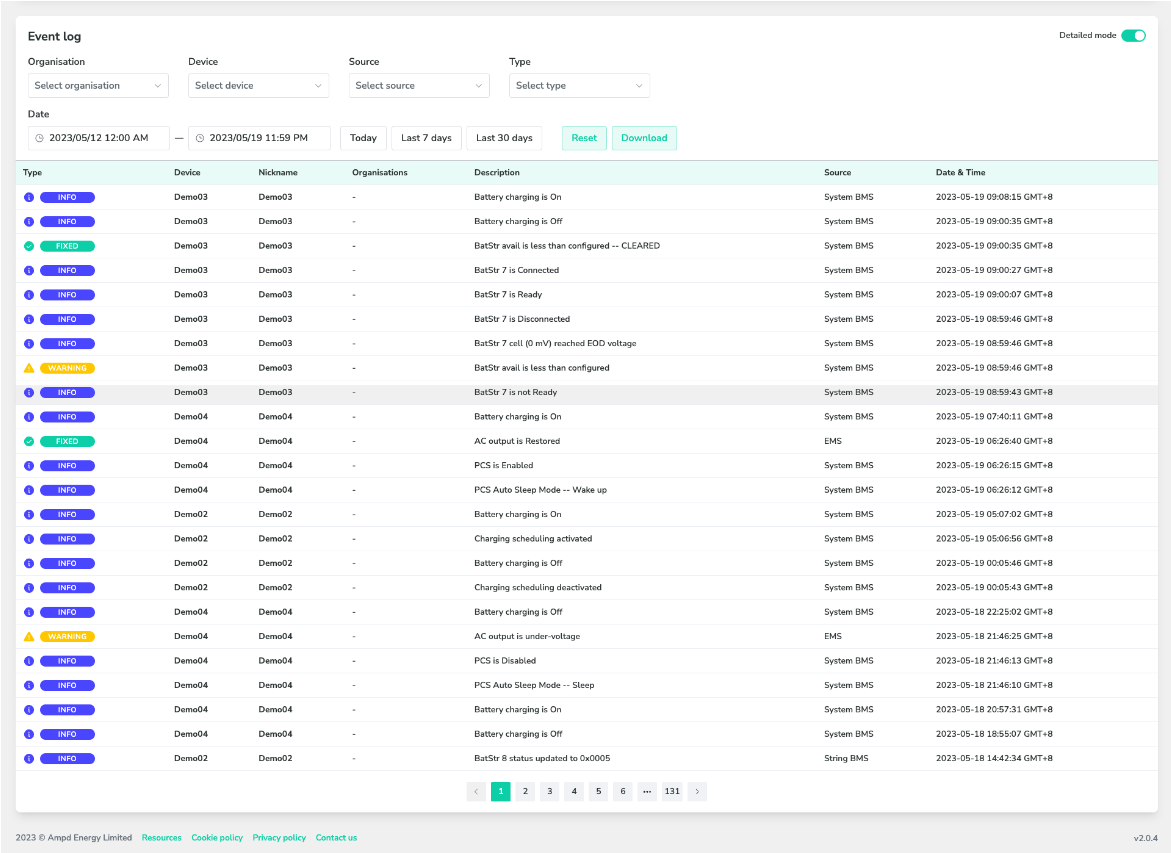 |
Report
Overview
Report is a landing page to display all the historical reports from each of the Enertainer in fleet level. Each report is a monthly overview of the performance of Enertainer. It is available for instant view and 3 ways of download in terms of PDF, CSV and JSON.
Purpose
Provides a quick way to review the monthly performance of Enertainer and download the editable document for internal reporting.
Specification
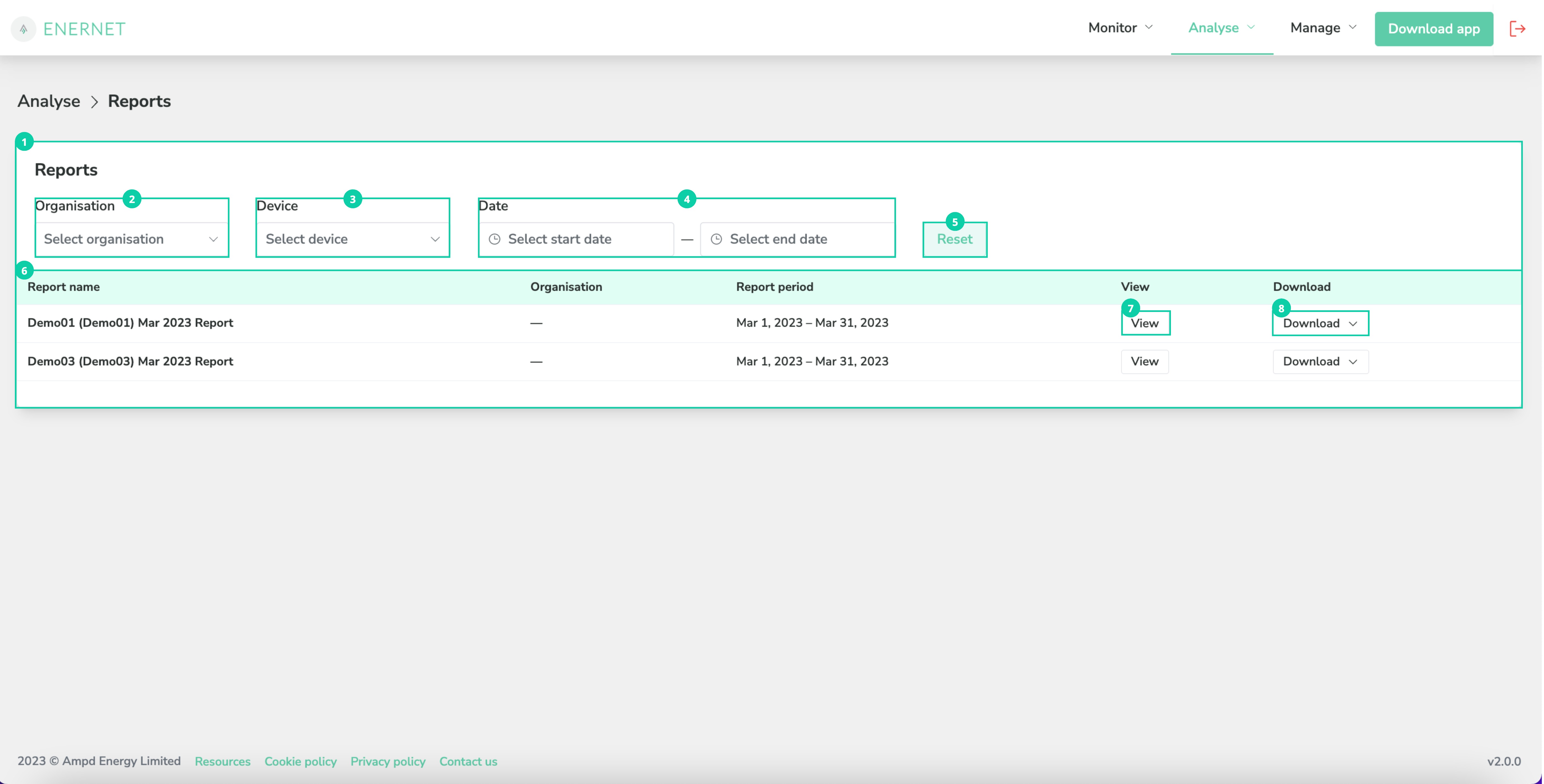
Label | Feature/ Sub feature | Purpose |
|---|---|---|
1 | Device report | Displays a list of reports available for download. |
2 | Organisation drop down menu | Select the organisations / relationships that access is granted. Remark: account with user permission does not have this function |
3 | Device drop down menu | Select the devices that access is granted. |
4 | Date picker for Issue log | Select a specific time period to view the reports of the selected Enertainer. |
5 | Reset button | Reset to default date to view the data. |
6 | Report list | Displays a list of 10 reports by 5 columns.
|
7 | View button | Open the selected report in PDF. Click navigation bar to zoom in and out, download and print, etc. |
8 | Download button | Select the file format, PDF/ CSV/ JSON to download. |
Notification records
Overview
Notification records is where to create and manage the notification setting for each Enertainer. Notification consists of 2 types.
SMS
When a specific event/ alarm is triggered, SMS message would be sent to the registered mobile number of selected receiver.
only 2 registered mobile numbers are available for each Enertainer.
Email
When a specific event/ alarm is triggered, email would be sent to the registered email of selected receiver.
No limit in the number of registered email for each Enertainer.
Events/ alarms that would be sent as notifications are shortlisted by Ampd Energy. Ampd Energy reserves the right to update any information without prior notice.
Purpose
Provides a quick and efficient way to get the latest emergency update of Enertainer.
Specification
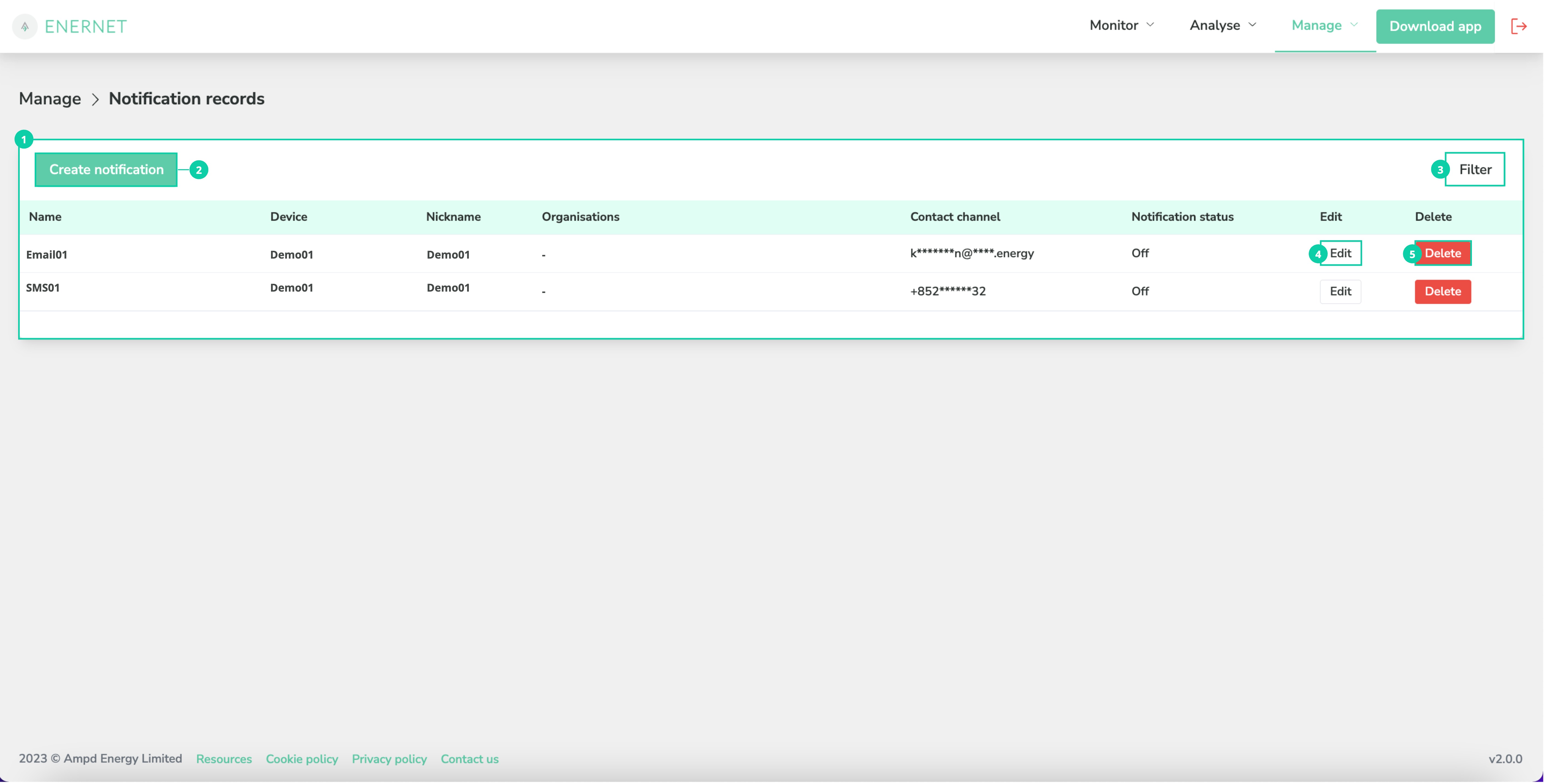
Label | Feature/ Sub feature | Purpose |
|---|---|---|
1 | Notification records | Displays a list of notification records.
Due to PII policy, all the personal data would be masked partially. |
2 | Create notification button | Creates a notification in terms of SMS and email.
Owner is only available to those admins with more than one ownerships of Enertainer from other organisation. 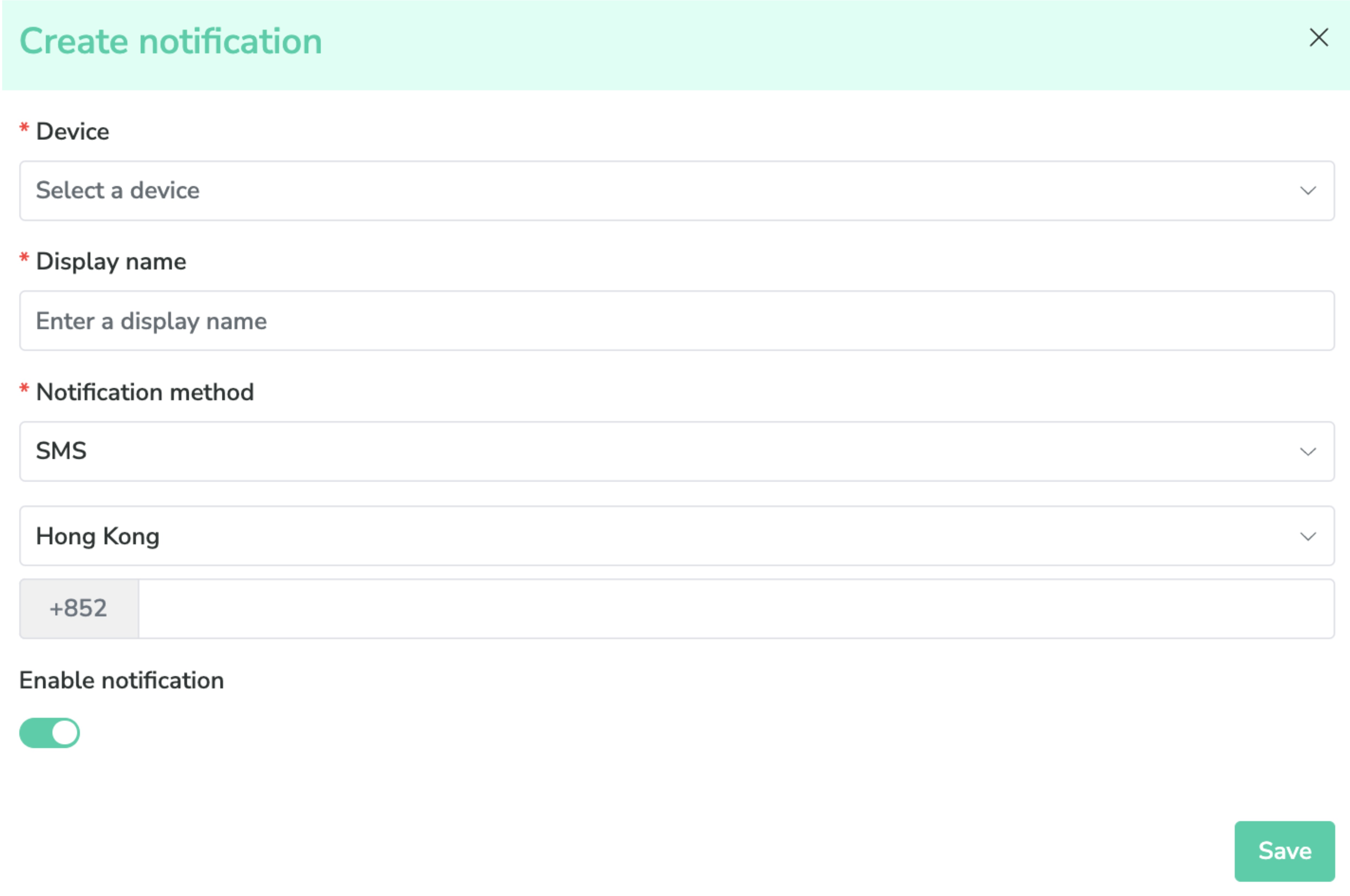 |
3 | Filter button | Filters the notifications when specific condition is set. Notification method and owner can be used for filtering. Owner is only available to those admins with more than one ownerships of Enertainer from other organisation. Click reset button to change into default condition. |
4 | Edit icon | Edits and updates the notification record.
Only account with admin permission can access this function 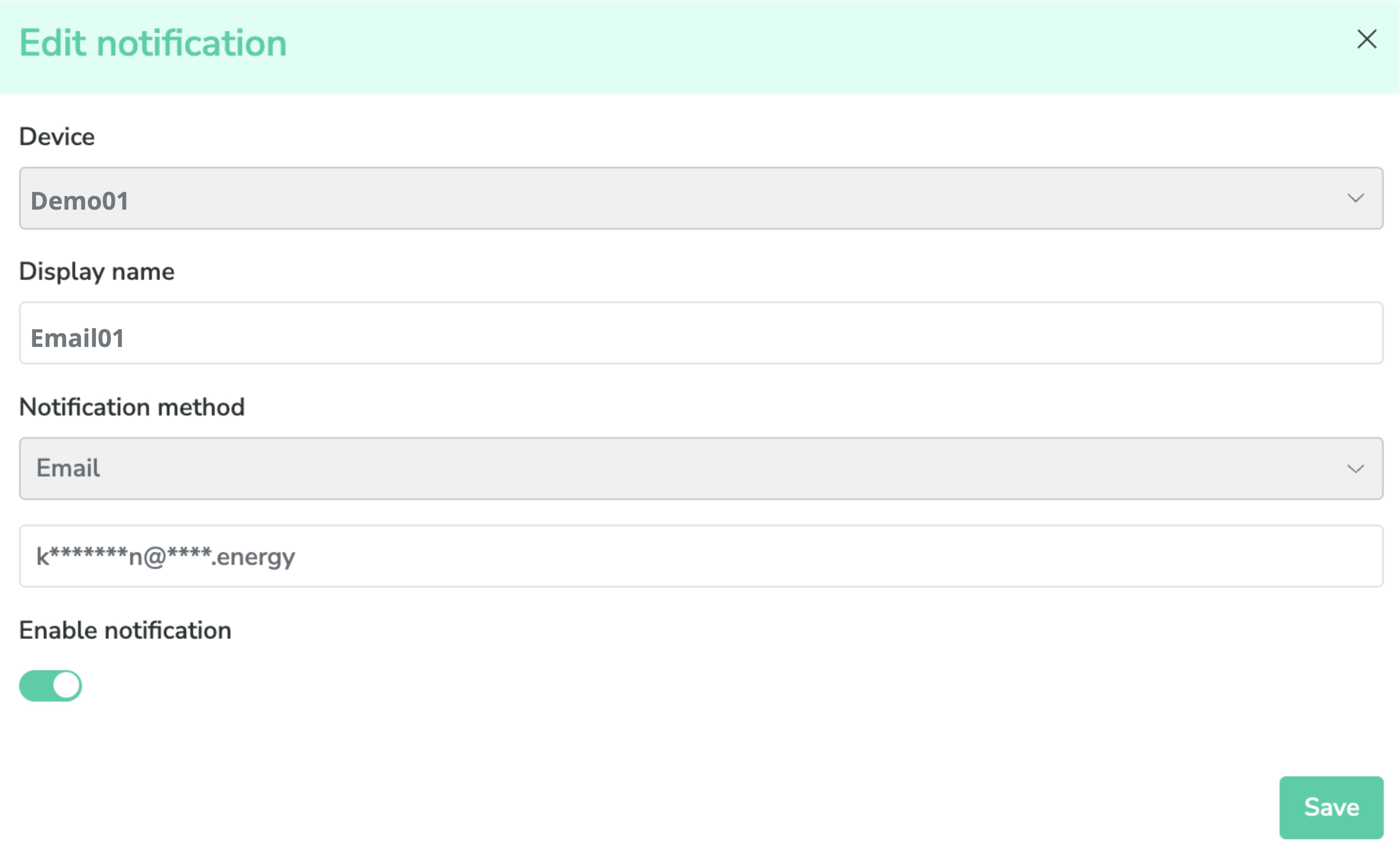 |
5 | Delete button | Deletes notification record. Only account with admin permission can access this function |
Profile and Users
Overview
Profile and Users is a user management page that manage the user profile and general user access control.
Purpose
Provide a way to change the personal information and manage the access of other users in admin level.
Specification
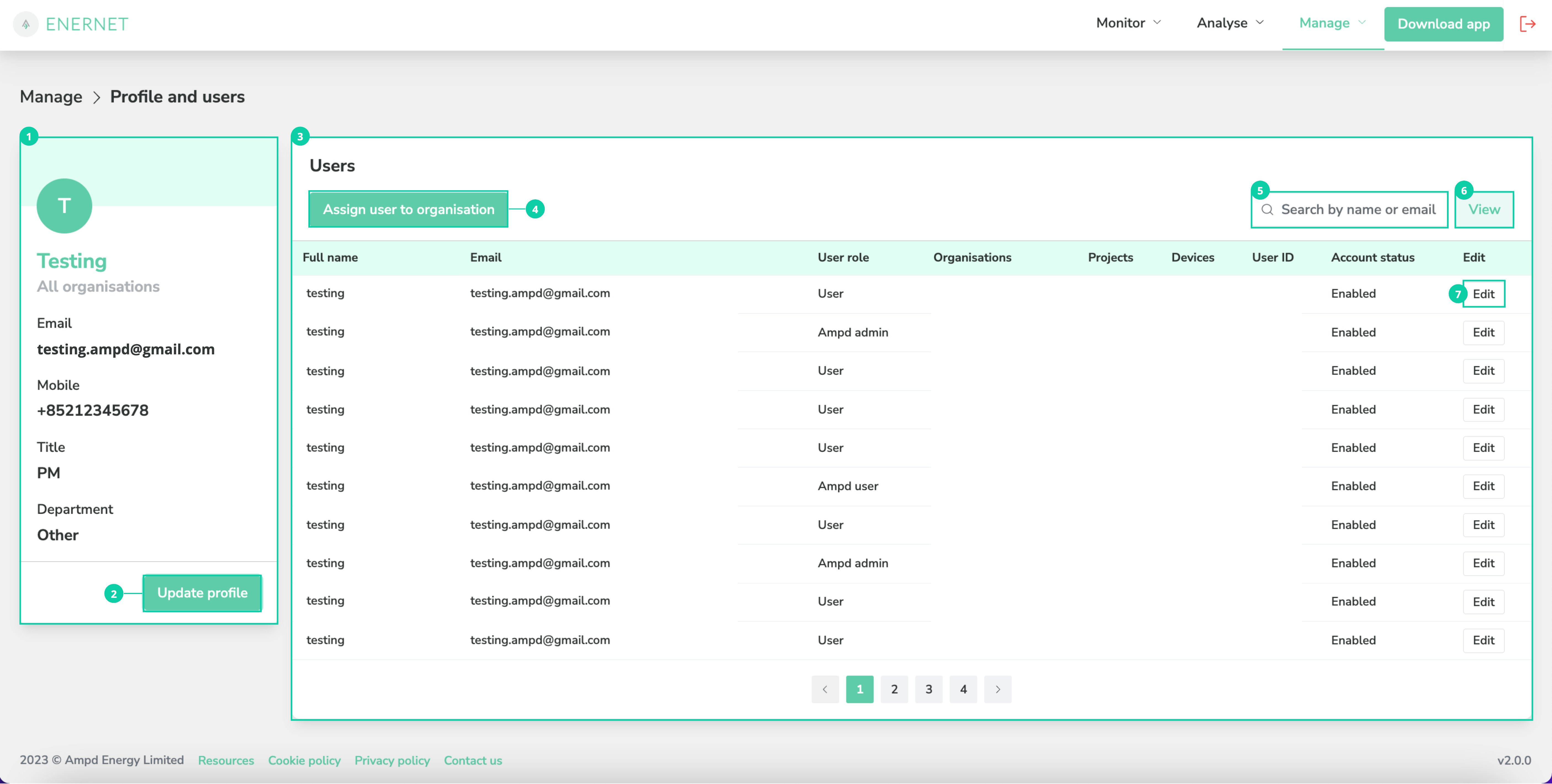
Label | Feature/ Sub feature | Purpose |
|---|---|---|
1 | User profile | Displays account information.
Contains Update Profile button that navigate to profile update pop up. |
2 | Update profile button | Updates full name, organisation, email, mobile, title, and department.
Click Reset password button to reset the password. Click Update information to save the update. 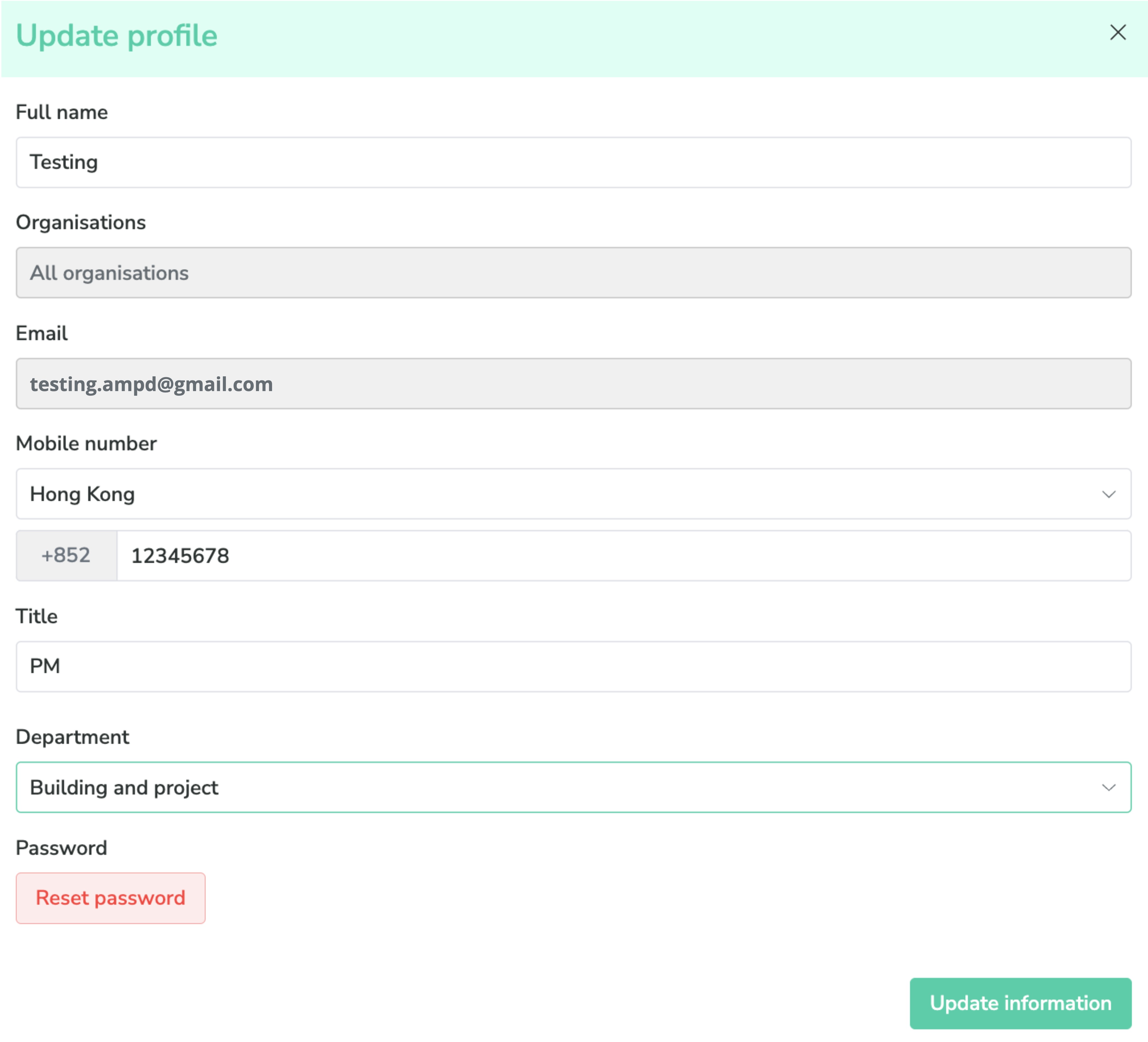 |
3 | User management card | Displays a list of registered user information and total number of registered users. Scroll up and down to navigate within the card.
User card is only available to admins who can manage the general access. |
4 | Assign user to organisation button | Assigns registered user to organisation. Input registered email of the new user. Select organisation and user role of the new user. It is only available to admins who can manage the general access. 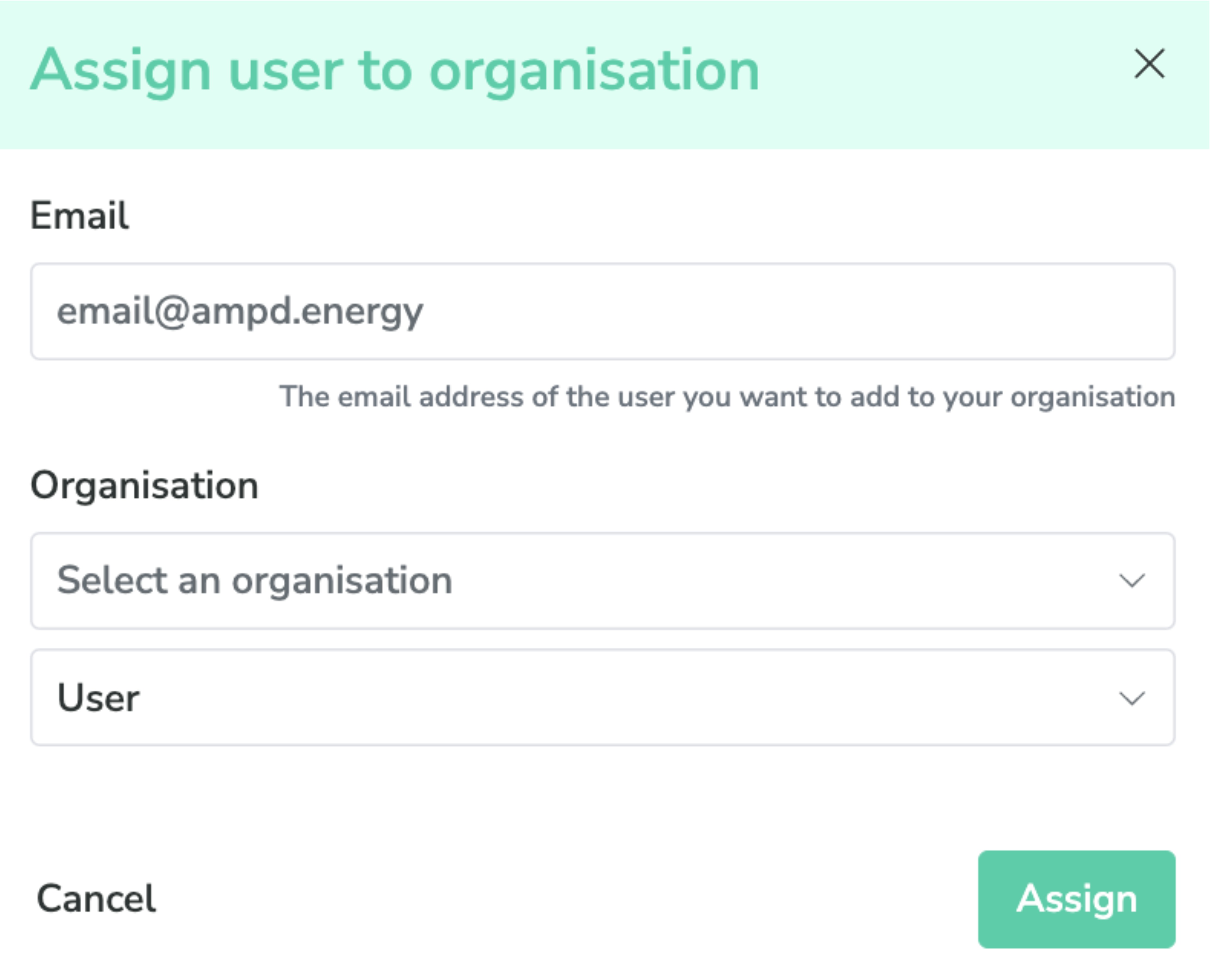 |
5 | Search field | Accesses to specific user by typing email/ assigned devices/ assigned projects. |
6 | View user button | Selects specific conditions of columns to view the info of other user accounts. 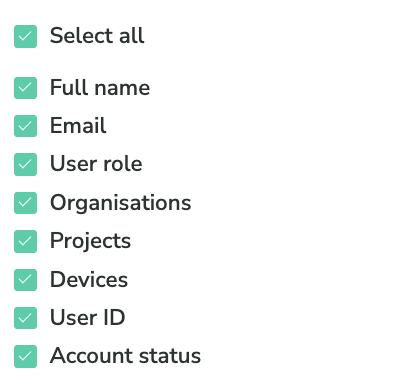 |
7 | Edit icon | Edits the permission access of users. Renew full name. Re-select organisation, user role, project, or device by clicking drop down menu. Delete records by clicking delete icon. Toggle on or off to change account enabled status. Save the edit record by clicking save button. Discard the edit record by clicking cancel button. 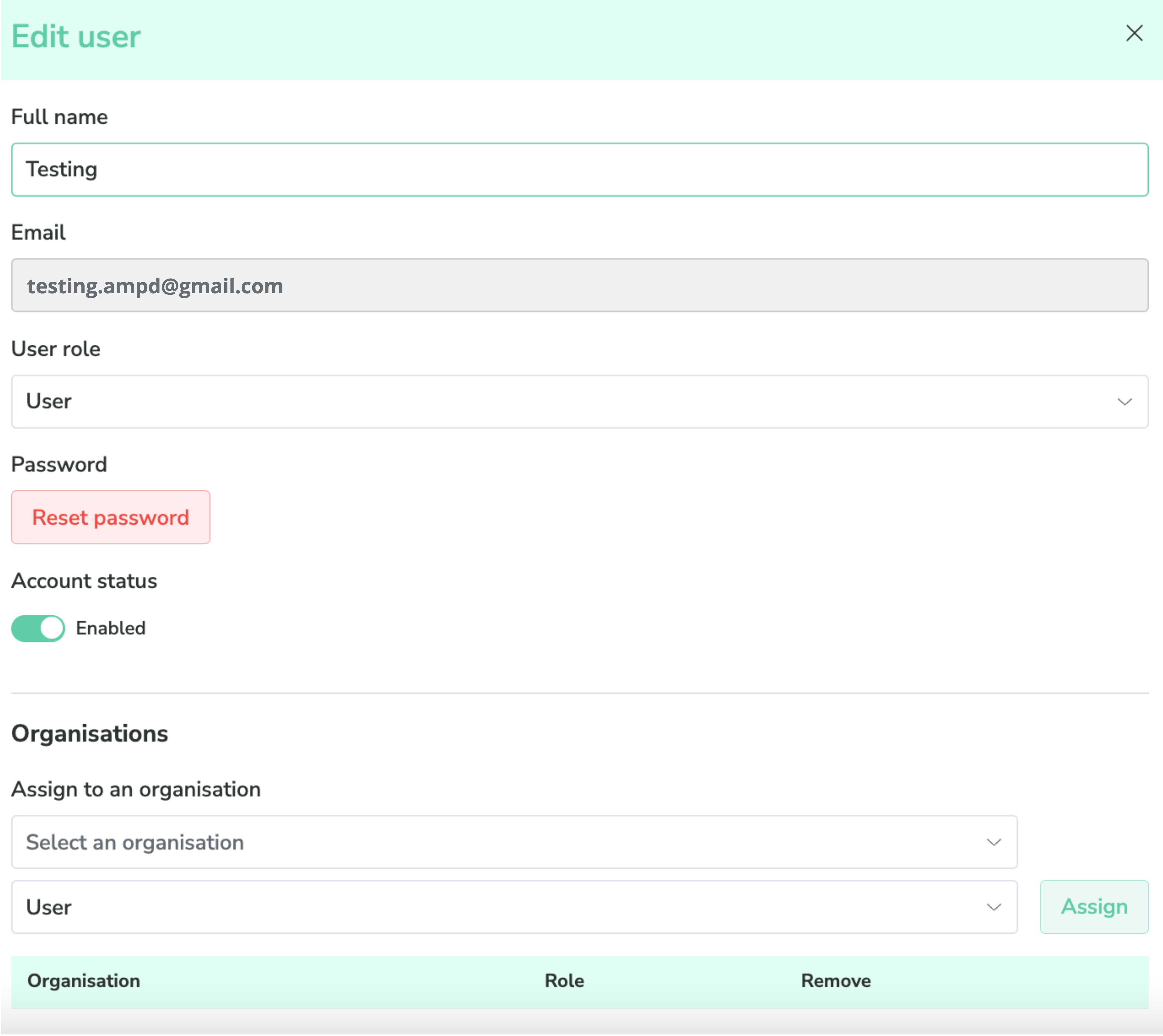 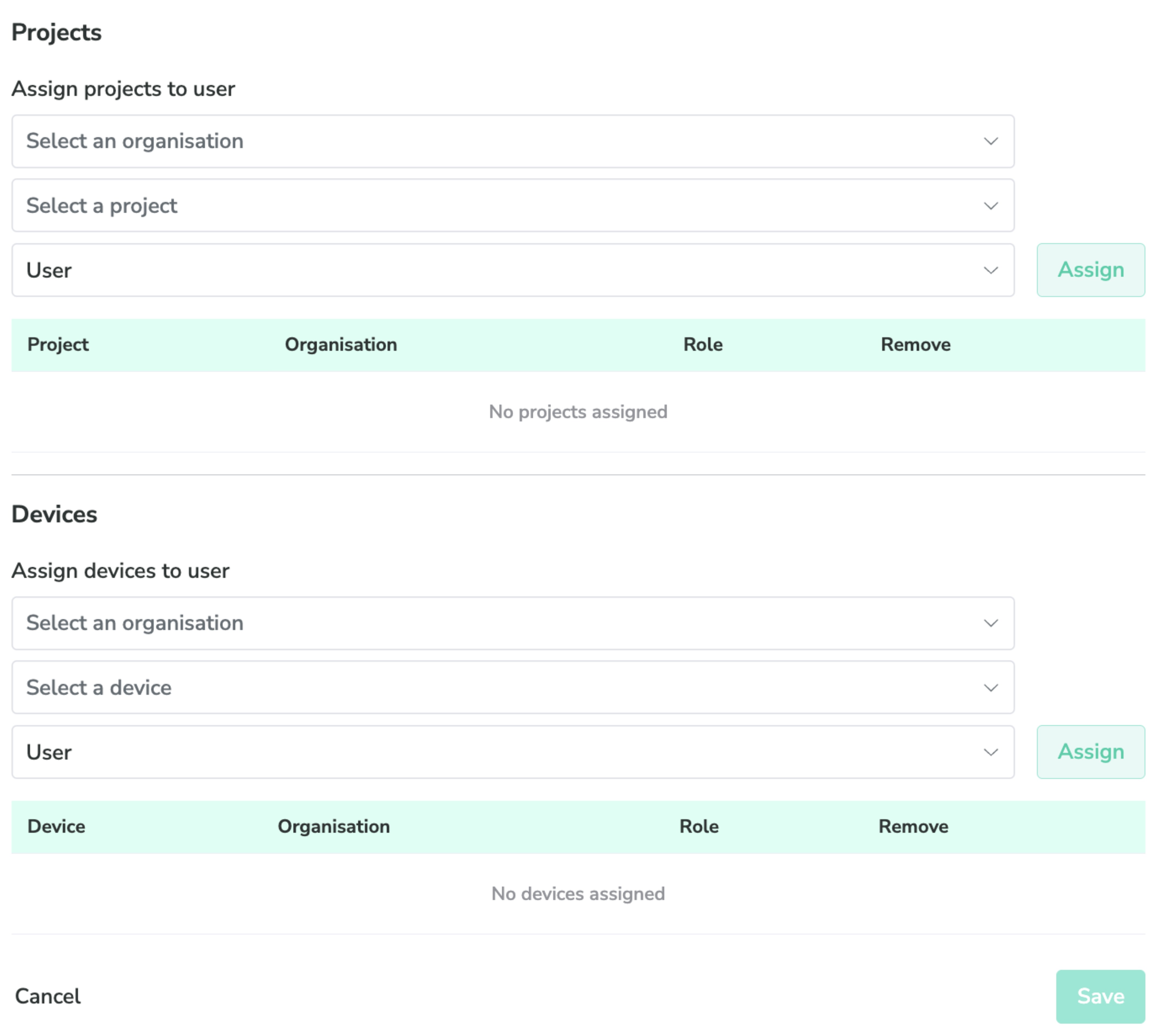 |
API tokens
Overview
API tokens allows users to request data of Enertainer from our system. Once the data request is sent based on specific device, the system would respond with the correct set of data through Rest API. There is no time interval during API call and the maximum 5 API tokens are given to each user account.
Purpose
Provides a way to do the system interfacing with Enernet data.
Specification
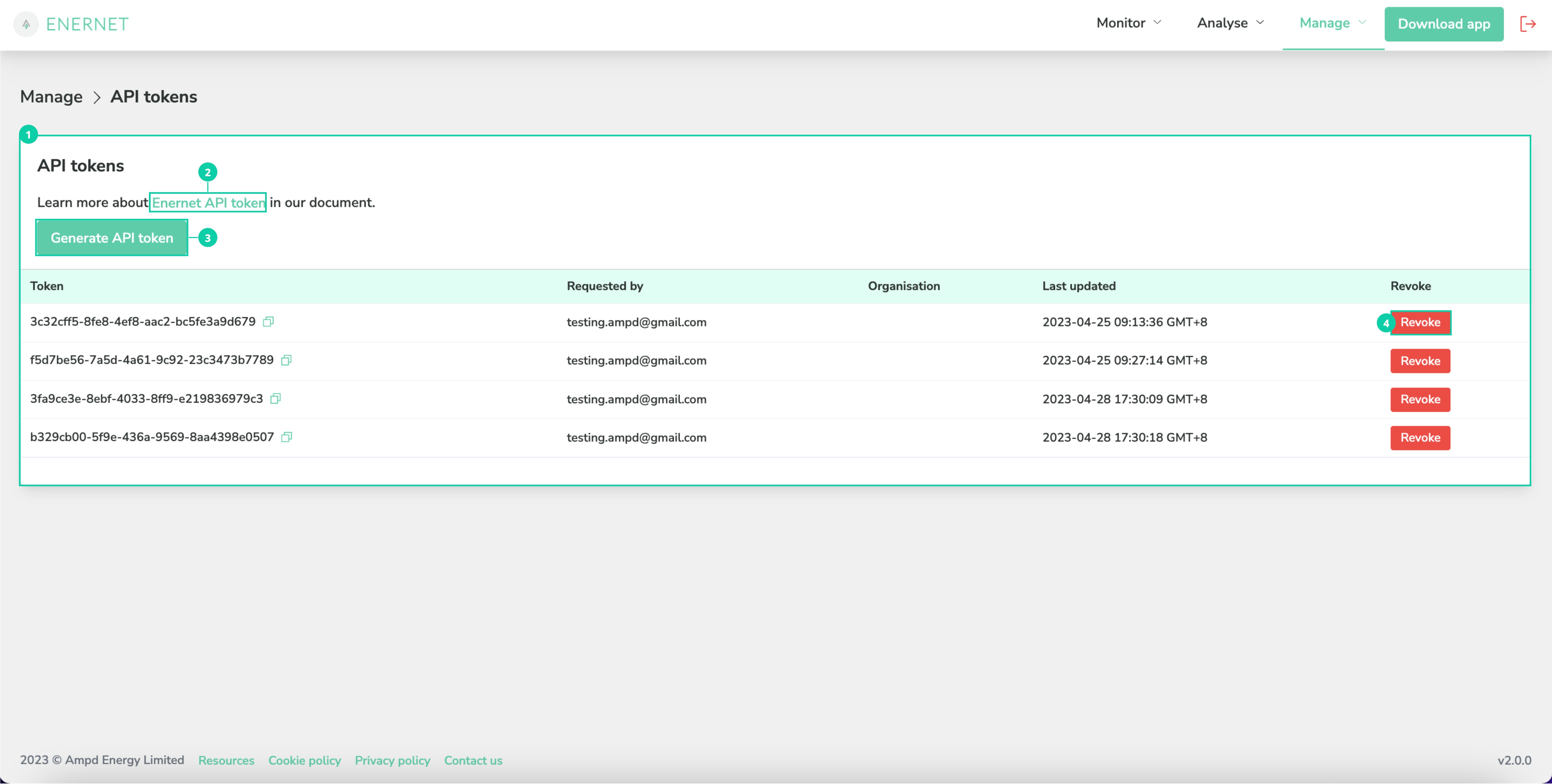
Label | Feature/ Sub feature | Purpose |
|---|---|---|
1 | API tokens | Displays the activity log of API token.
|
2 | Enernet API token (external link) | Navigates to API access document. |
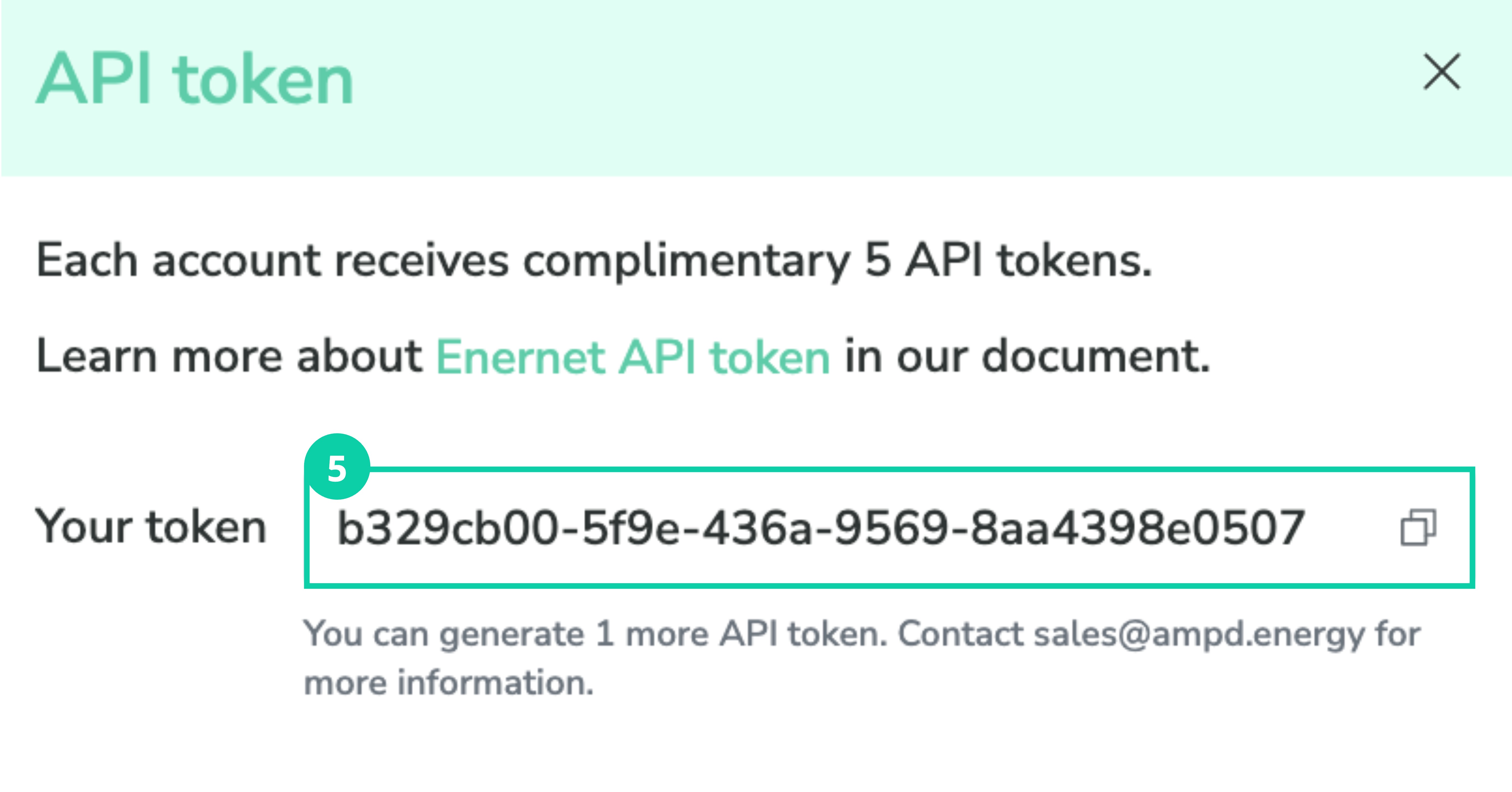
3 | Create API token button | Click to get a new API token code. Detail refers to 5. |
4 | Delete token button | Deletes token record. |
5 | API token pop up | Click copy icon to copy the token code. |
Resources
Overview
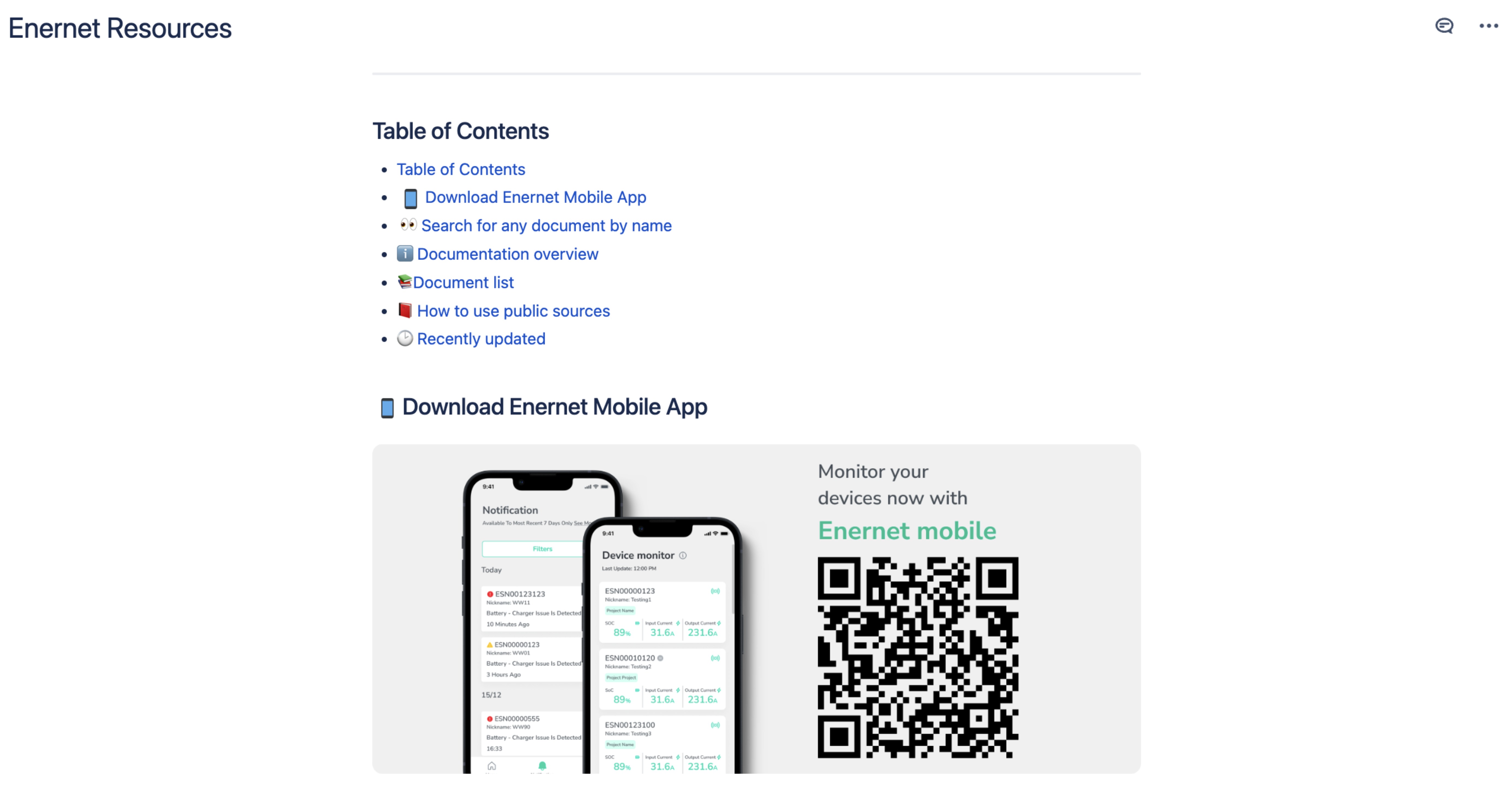
Resources is an external documentation link that contains a list of user manuals, maintenance support plans and product sheets of all Ampd Energy products. Users can navigate to Resources by clicking Resources at footer on Enernet.
List of documents
Enertainer user guide
Support Plan
Enernet user manual
Enernet mobile app user manual
Estimated carbon savings and diesel savings calculations
Purpose
Provide a way to allow users to search and find the relevant product materials for reference.
Cookie policy
Overview
Cookie policy aims to inform users the data that Ampd Energy would track and where the data would be sent. It also allows users to manage and change their preferences in cookie settings.
Cookie policy of Enernet
If users have any questions or concerns regarding this Cookies Policy or its implementation, you can contact us at the following email address: privacy@ampd.energy
Purpose
Provide a way to allow users to understand the cookie policy and manage the cookie settings when they use Enernet platform.
Privacy policy
Overview
Privacy policy is a standard document that informs users the way and reason why Ampd Energy collect their information.
Privacy policy of Enernet
If users have any questions or concerns regarding the Privacy Policy or its implementation, you can contact us at the following email address: privacy@ampd.energy
Purpose
Provide a way to allow users to understand the privacy policy when they use Enernet platform.
Contact us
Overview
Contact us consists of 3 major parts to collect the voices from users.
Purpose
Provide a direct and quick way to give feedback and upload related attachments.
Specification
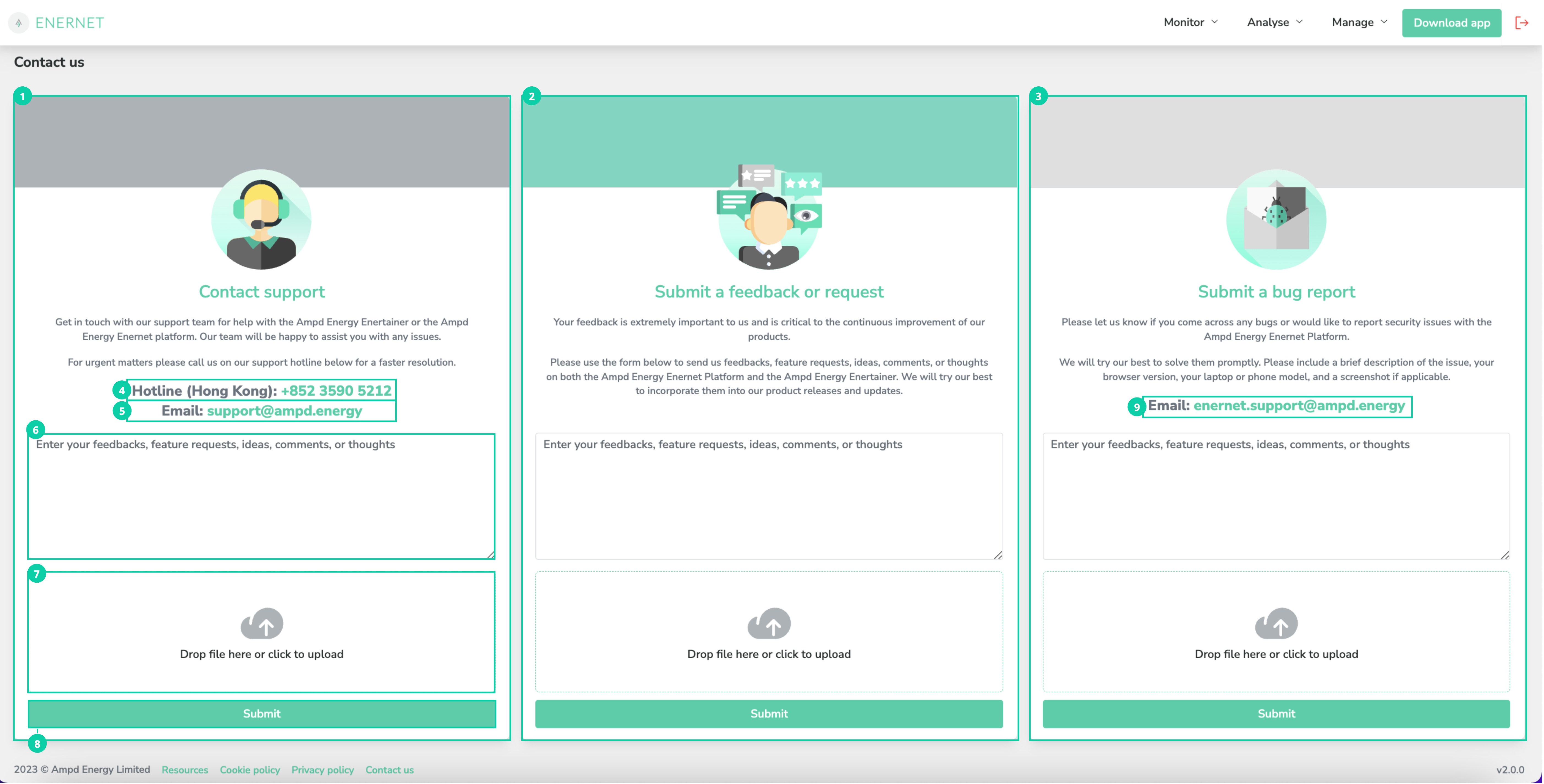
Label | Feature/ Sub feature | Purpose |
|---|---|---|
1 | Contact support card | Displays a field to collect both technical and usability enquiries from user. |
2 | Submit feedback or request card | Displays a field to collect usability feedback from user. Detail can refer to 4, 5, 6, 7, 8. |
3 | Submit bug report card | Displays a field to collect technical issues found out by user. Detail can refer to 4, 5, 6, 7, 8. |
4 | Hotline link | Displays the contact number of Ampd Hong Kong office (+852 3590 5212). Navigates to have direct call. |
5 | E-mail link | Displays the support e-mail address (support@ampd.energy). Click to compose an e-mail to support@ampd.energy. |
6 | Feedback field | Enters the feedback, enquiries, or technical issues. |
7 | Browser tab | Uploads related attachments. |
8 | Submit button | Submits the feedback, enquiries, or technical issues. |
9 | Email link | Displays the Enernet support e-mail address (enernet.support@ampd.energy). Clicks to compose an e-mail to enernet.support@ampd.energy. |
Version (with Release notes)
Overview
Version can navigate to Release notes which is a page that contains all the release records for reference. It navigates to Release notes by clicking the version in the right bottom corner.
Purpose
Provides a way to check the description of new features, updates and fixes in each release.
Specification
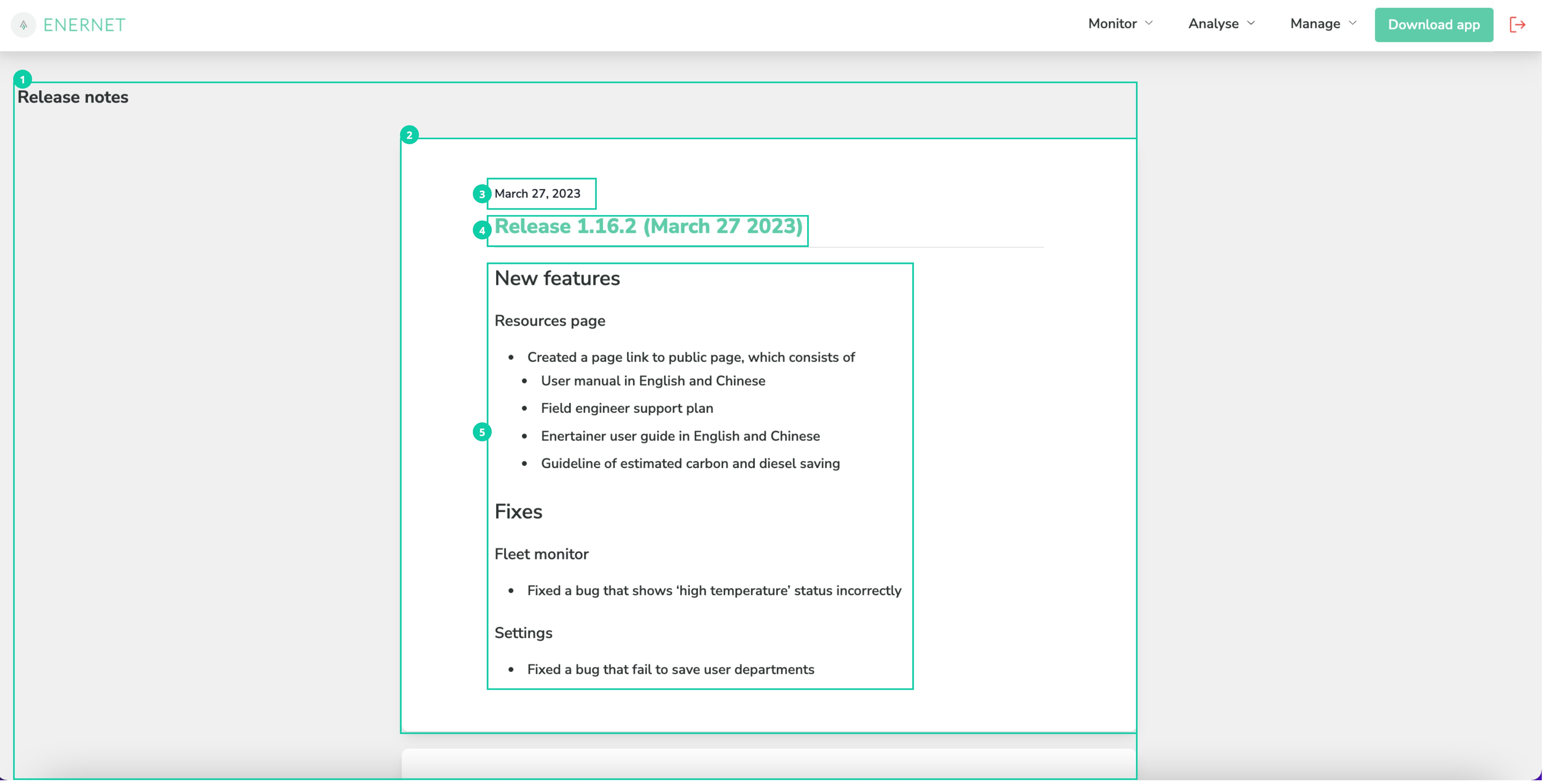
Label | Feature/ Sub feature | Purpose |
|---|---|---|
1 | Release notes | Displays the release record in chronological order. |
2 | Release card | Displays the detail of release. |
3 | Release date | Displays release date in DD/MM/YYYY. |
4 | Release title | Displays release version and release date. |
5 | Release content | Displays the description of new features, updates and fixes by bullet point. |