
Enernet Mobile app - User Manual

Version | VER.0 |
|---|---|
Publication date | 26 Jan 2023 |
Introduction
The Enernet mobile application is a simple version of Ampd Energy Enernet Platform. it simplified complex information and data point to limit to most valued data, considering from construction site view point.
The platform is composed of various features that focusing on display real time data for each Enertainer. it consists of 2 main features:
Home (Device Monitor page)
Notification page
No matter what user role you are, it gives you a way to oversee and master the general status of each Enertainer easily and remotely.
Detailed way to access to Enernet is shown below.
Navigation menu
Overview
Navigation menu is a quick way for users to get started with Enernet mobile application.
Purpose
Provide a series of key functions and quick access to different features.
Specification
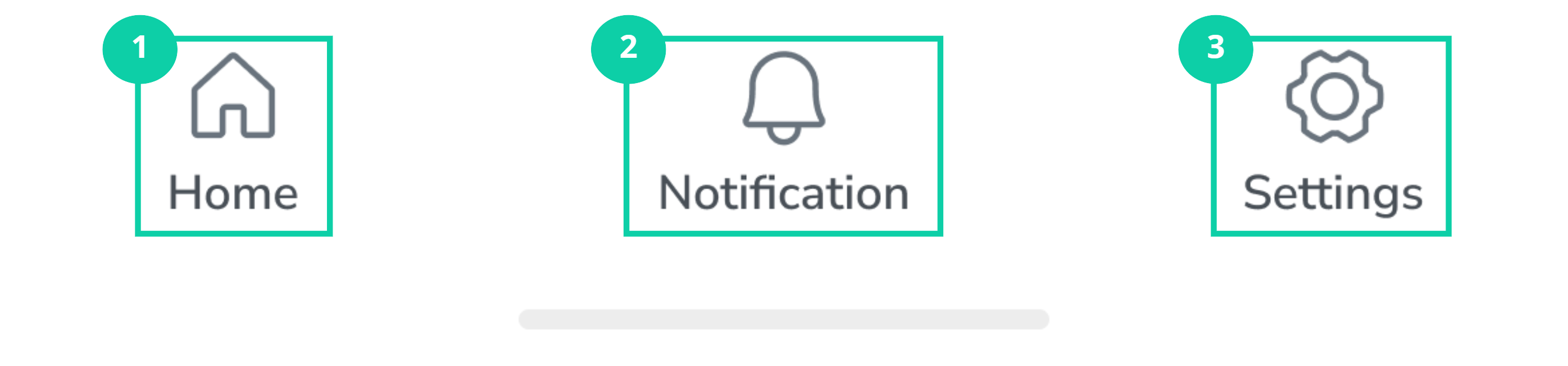
Label | Feature/ Sub feature | Purpose |
|---|---|---|
1 | Homepage button | Navigate to homepage or Device Monitor. |
2 | Notification | Monitor notification in different issue type including real time and detailed historical alarm messages from recent 7 days. |
3 | Settings | Navigate to Setting page. |
Device monitor (Home)
Overview
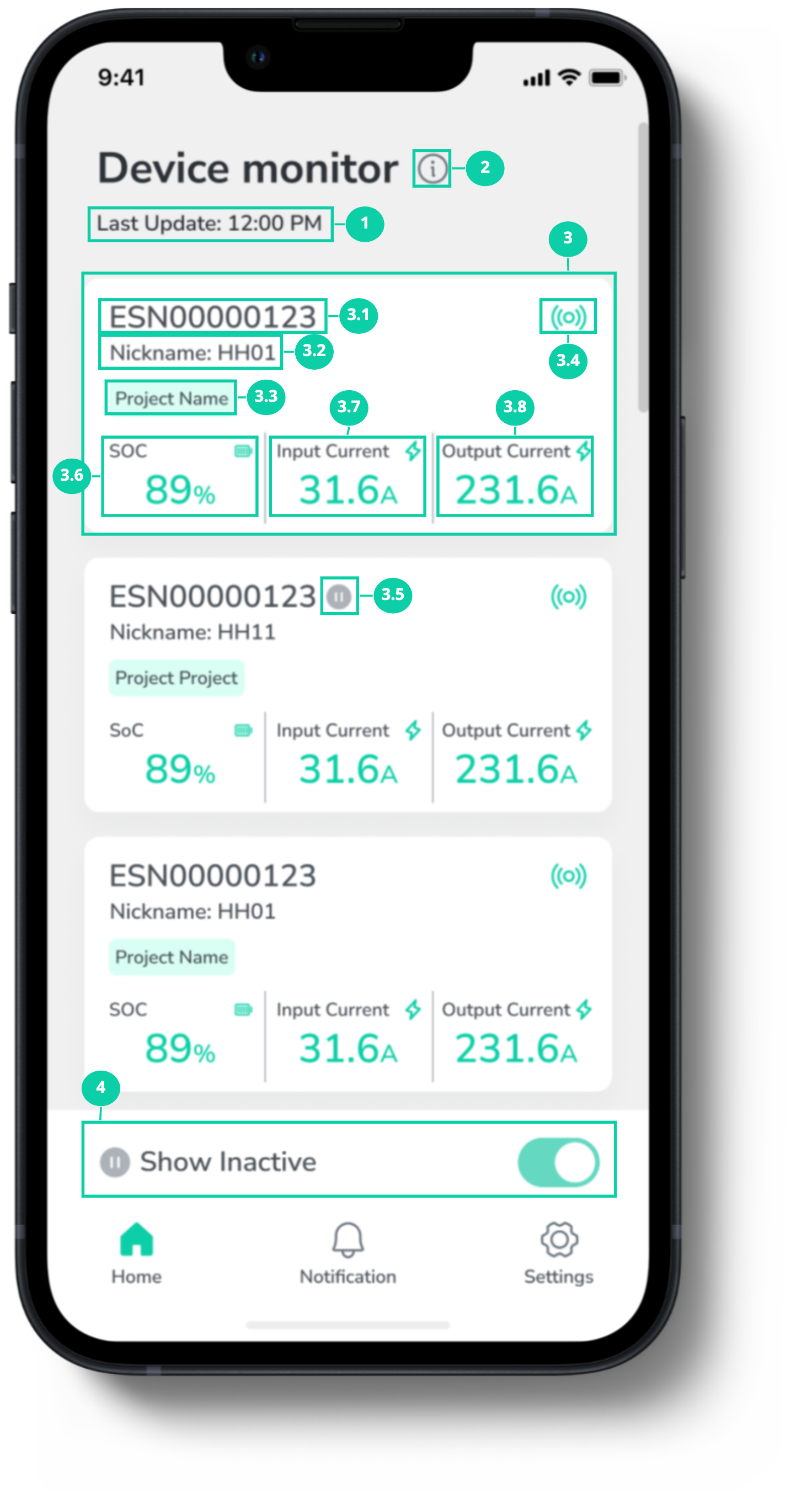
Device monitor is the homepage of Enernet mobile application. Device monitor is the detailed overview of Enertainer performance. It consists of 5 parts to evaluate real time performance of the Enertainer.
Purpose
Provide a real-time information, which provide information about the performance of each Enertainer in a simple way.
The data consists of
SOC
Input current
Output current
Active / inactive device status
Device Signal
Specification
Label | Feature/ Sub feature | Purpose |
|---|---|---|
1 | Latest update time | Display the latest update time for device monitor page. |
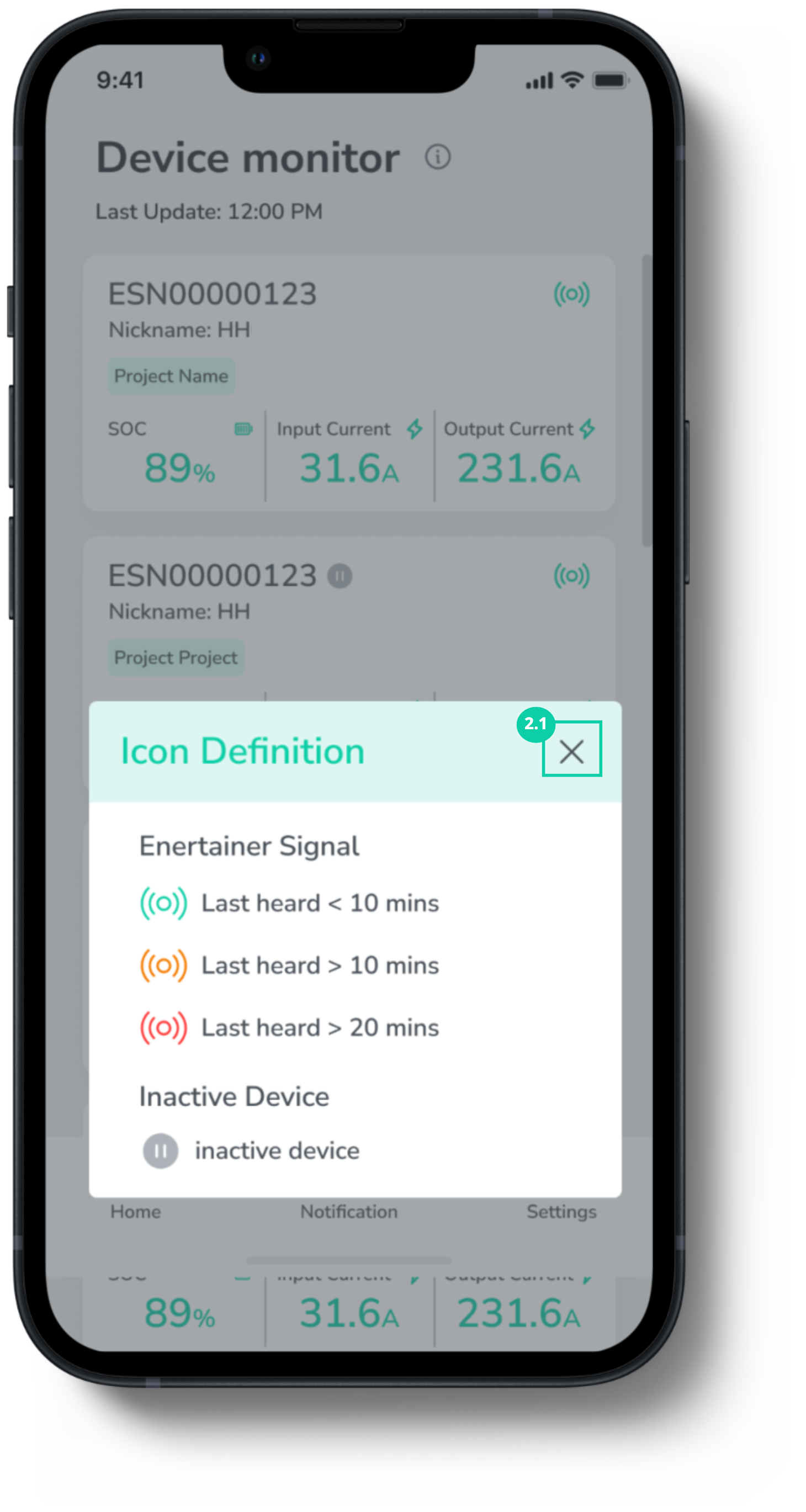
2 | Info icon | Indicate the icon definition. Click info icon to view icon definition on Device Monitor.  |
2.1 | Close button (X) | Click X icon to close icon definition pop-up to view Device Monitor. |
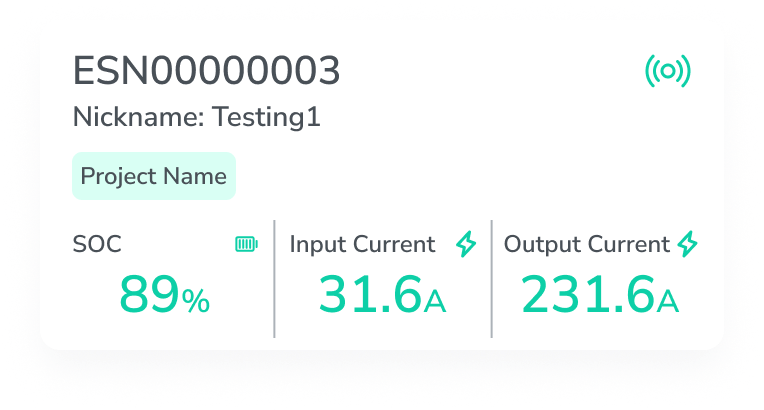
3 | Device card | Display basic information and real time status of specific Enertainer.
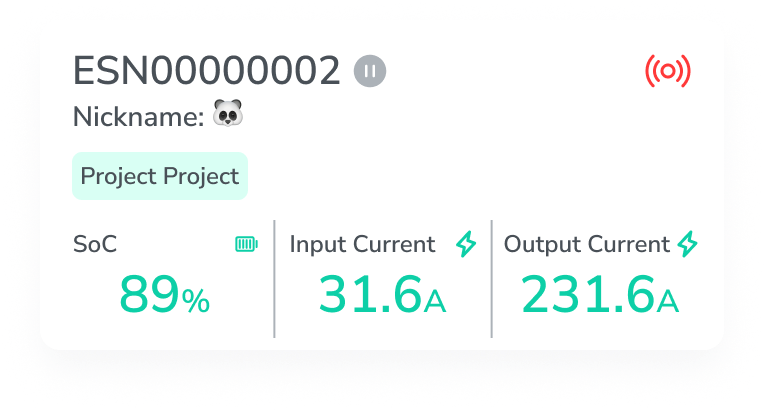 |
3.1 | Device name | Indicate the name of Enertainer based on the serial number of that Enertainer. It used as universal name for devices. |
3.2 | Nickname | Indicate the customised nickname of Enertainer. Nickname can be changed by user with permission. |
3.3 | Project name | Indicate the project that use the Enertainer. |
3.4 | Signal | Indicate the Enernet’s signal and connection to wifi.
|
3.5 | Inactive icon | Indicate that device is inactive or not. Only display when the device is inactive. |
3.6 | SOC | Display State of Charge of Enertainer.
|
3.7 | Input Current | Display the average amount of current (A) that flows into Enertainer. |
3.8 | Output Current | Display the maximum amount of current (A) tghat can be powered out of Enertainer at the latest update time. |
4 | Show inactive toggle | Toggle to turn on/ off to view inactive device.
Definition of inactive Enertainer
|
Notification
Overview
Notification is a page that include all the issue and alarm that occurred to the device. The notifications that sent to user are only notification from devices that added under users' account. The notification will contains from today until the most recent 7 days from today.
Issues/ alarms that would be sent as notifications are shortlisted by Ampd Energy. Ampd Energy reserves the right to update any information without prior notice.
Each notifications is displayed as a pin in any of the 2 statuses. 2 alarm statuses are presented in 2 different colours.
Error
Red error icon

Warning
Yellow warning icon

Definition of alarm status
Given that there is/ are
Only one active alarm type, the status would follow the alarm type.
More than one active alarms types, error status would be presented first.
Purpose
Provide a quick and efficient way to get the latest emergency update of Enertainer through mobile application.
Specification
Label | Feature/ Sub feature | Purpose |
|---|---|---|
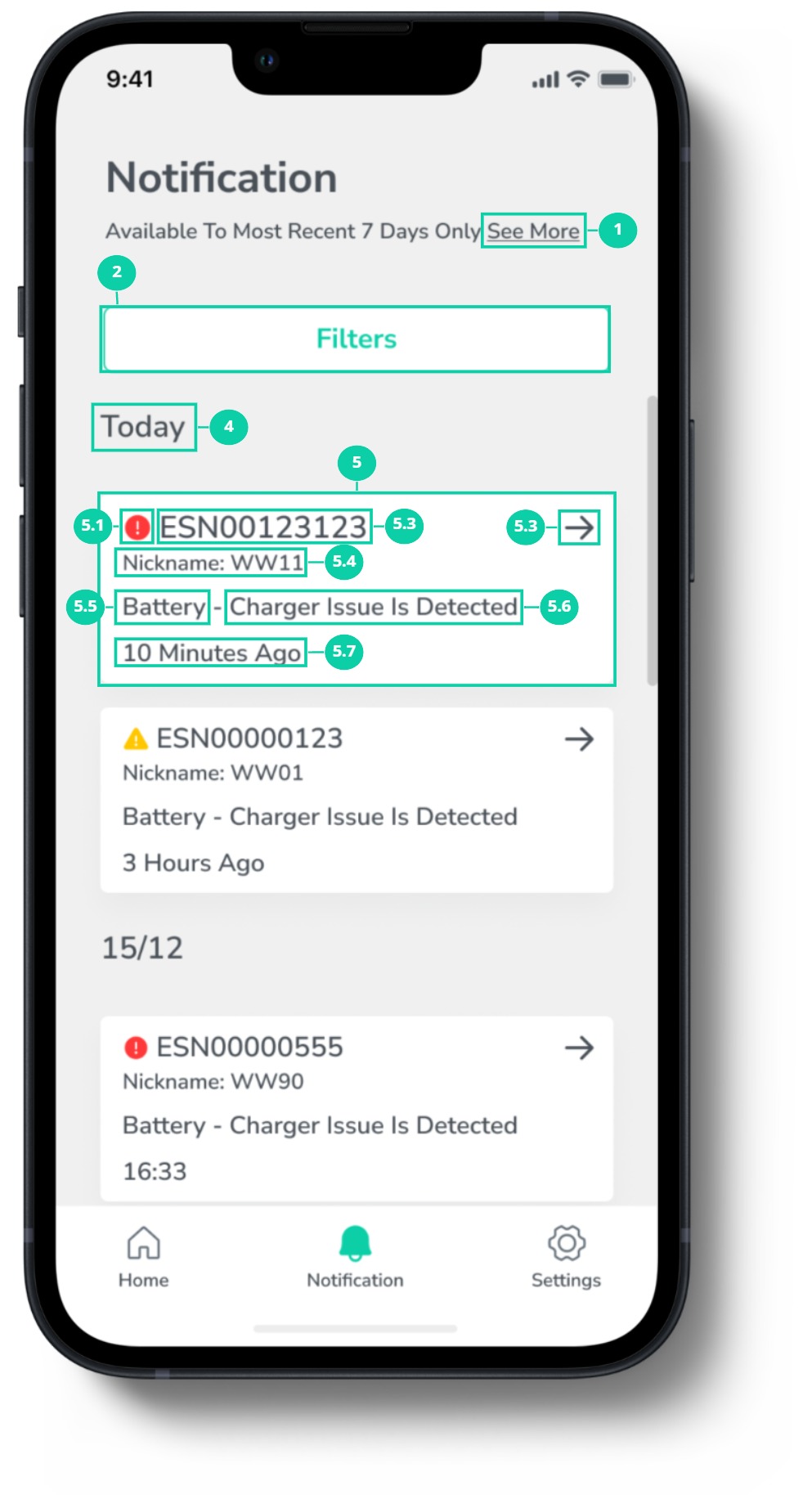
1 | ‘See more’ link | Link to Enernet to view more notifications. |
2 | Filter button | Filter notification in different issue type including real time and detailed historical alarm messages from recent 7 days. |
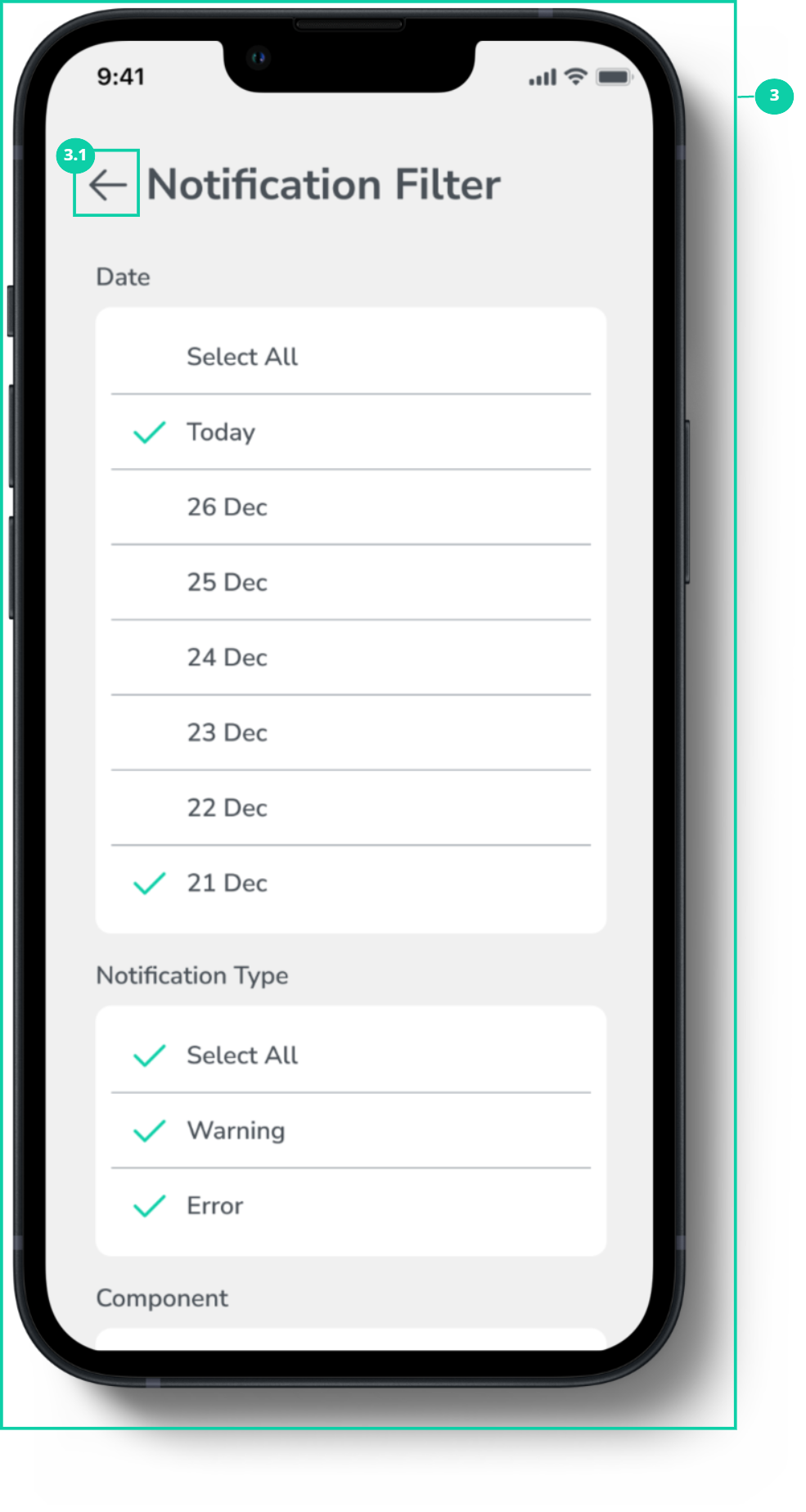
3 | Notification filter page | Select filters to monitor notification in different issue type including real time and detailed historical alarm messages from recent 7 days. Filter the notifications when specific condition is set. Notification filter consists of
|
3.1 | Back button | Navigate to back to notification page. |
4 | Notification date | Indicate the date when notification received. |
5 | Notification card | Display both real time and historical issues/ alrms in terms of error and warning. |
5.1 | Notification type | Indicate severity of the issue/ alarm. it displayed of 2 type of noitfication.
|
5.2 | Device name | Indicate the name of device that sent specific notification to Enernet. The name of Enertainer based on the serial number of that Enertainer. It used as universal name for devices. |
5.3 | Arrow | User can click ‘right arrow’ icon to go to detailed page of that notification card to view more detail about the issue. |
5.4 | Nickname | Indicate the nickname of device that sent specific notification. the customised nickname of Enertainer. Nickname can be changed by user with permission. |
5.5 | Issue component | Indicate component that has certain issue/ alarm. Component consists of 4 components.
|
5.6 | Issue description | Display brief issue status and result. |
5.7 | Notification time | Indicate time that the notification sent to user. |
6 | ‘View more notification’ link | Link to Enernet’s Issue log page to view more issue. |
Detailed Notification page
Overview
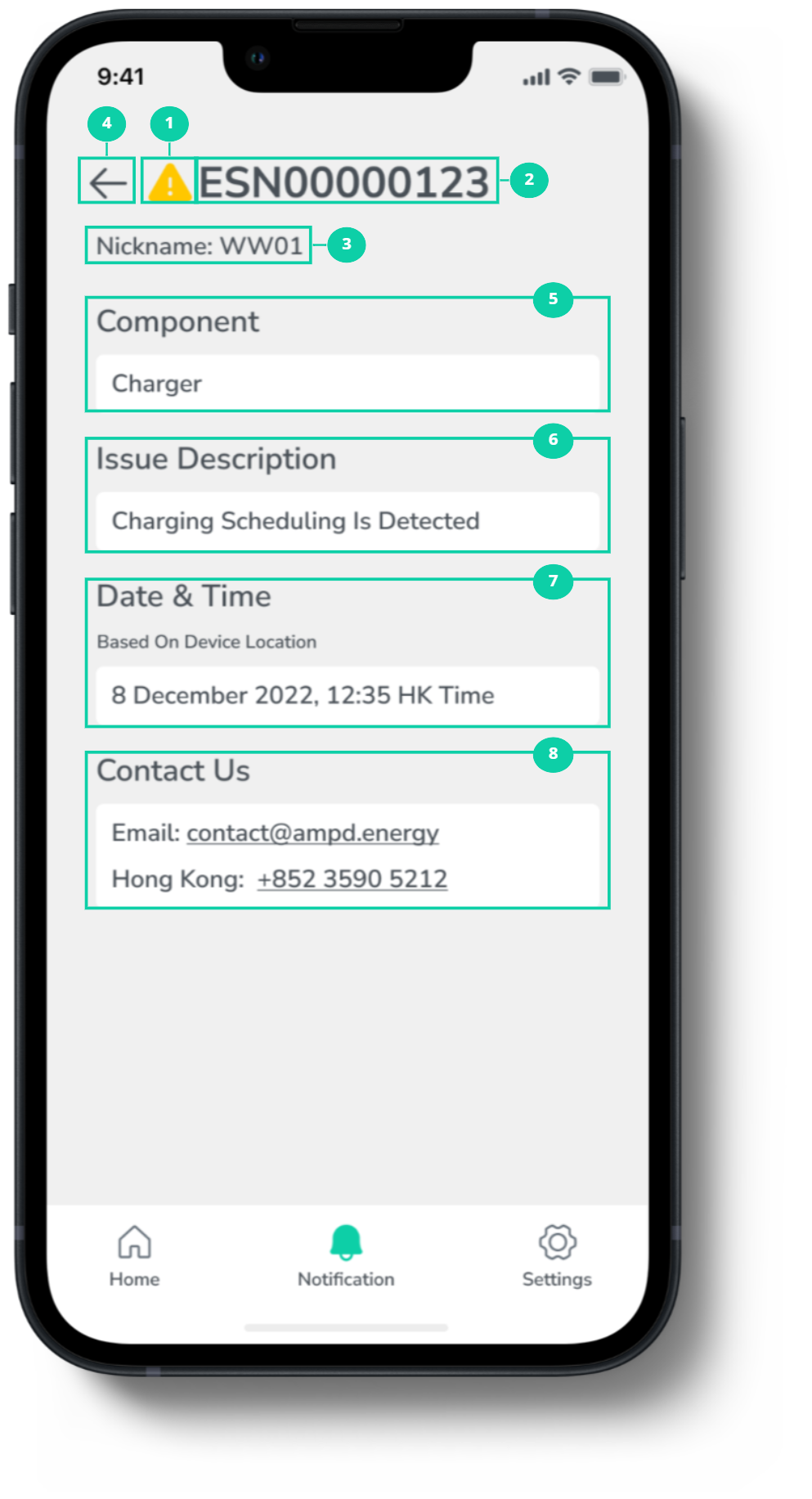
Detail notification page is the detailed overview of Notification card. It consists of 2 parts
Notification information
Notification type
Device name
Device nickname
Component
Issue Description
Date & time
Ampd Energy contact information
Purpose
Provide more detailed information regarding the notification to help identify the occurred issue and able to inform Ampd Energy staff to help resolve the problem that occurred to the device.
Specification
Label | Feature/ Sub feature | Purpose |
|---|---|---|
1 | Notification type | Indicate severity of the issue/ alarm. it displayed of 2 type of notification.
|
2 | Device name | Navigate to homepage or Device Monitor. |
3 | Device nickname | Monitor notification in different issue type including real time and detailed historical alarm messages from recent 7 days. |
4 | Back arrow | Navigate to Setting page. |
5 | Component | Indicate component that has certain issue/ alarm. Component consists of 4 components.
|
6 | Issue description | Display brief issue status and result. |
7 | Date & Time | Indicate time that the notification occurred at a specific device. The displayed time is based on the device’s location timezone. |
8 | Contact us | Display the contact information of Ampd Energy both email and phone number based on device’s location only. In case that system cannot identify device’s location, it will shows all the contact information. Contact information consists of
|
Settings
Overview
Setting is a user management and setting page that provide general information of the account owner. Such as, name, email, organisation, registered mobile number. Besides access control, Language settings, Notification, and, User guide is also included.
Purpose
Provide a way to view the personal information and user guide. Also, change application language preference.
Specification
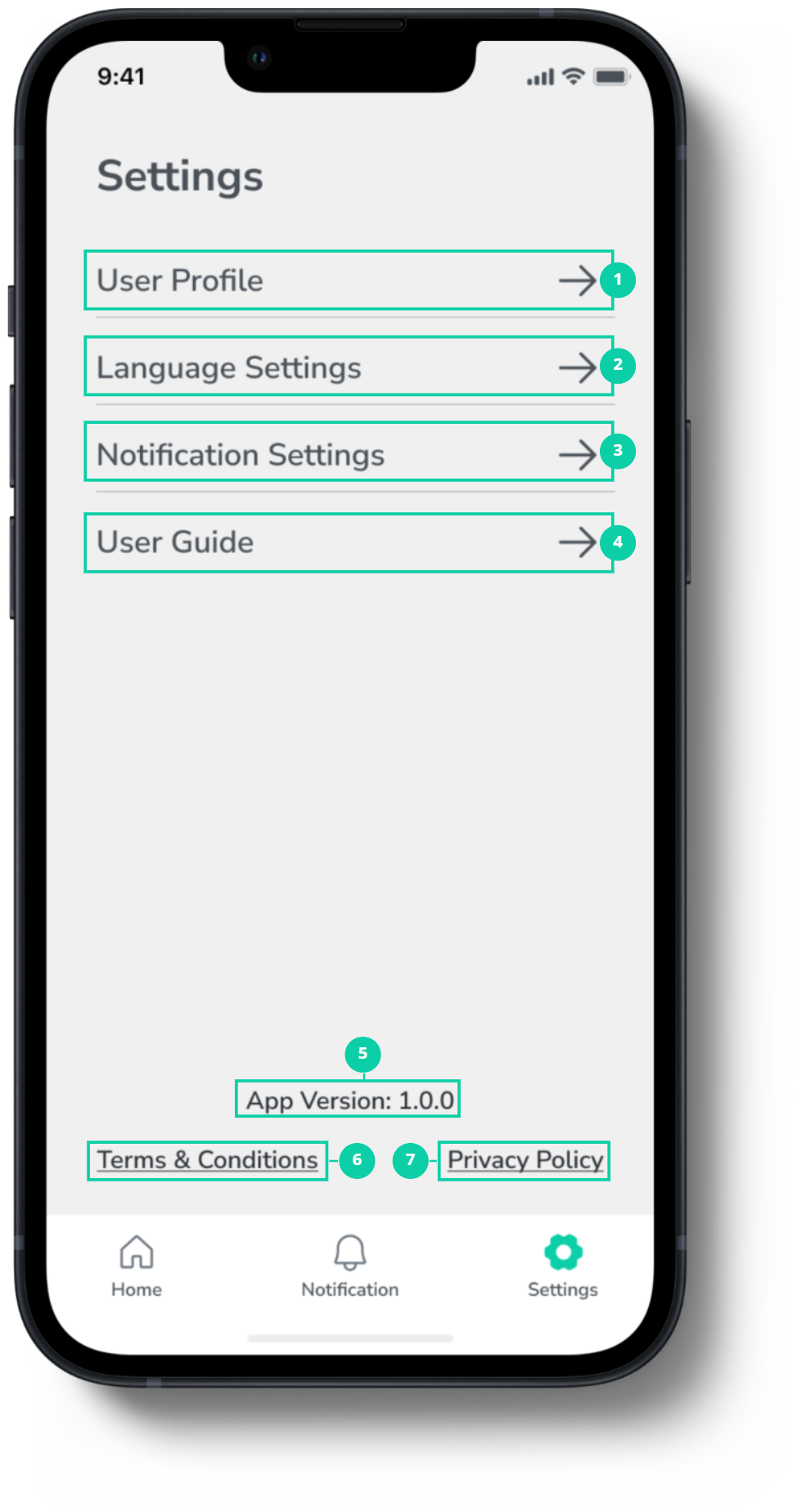
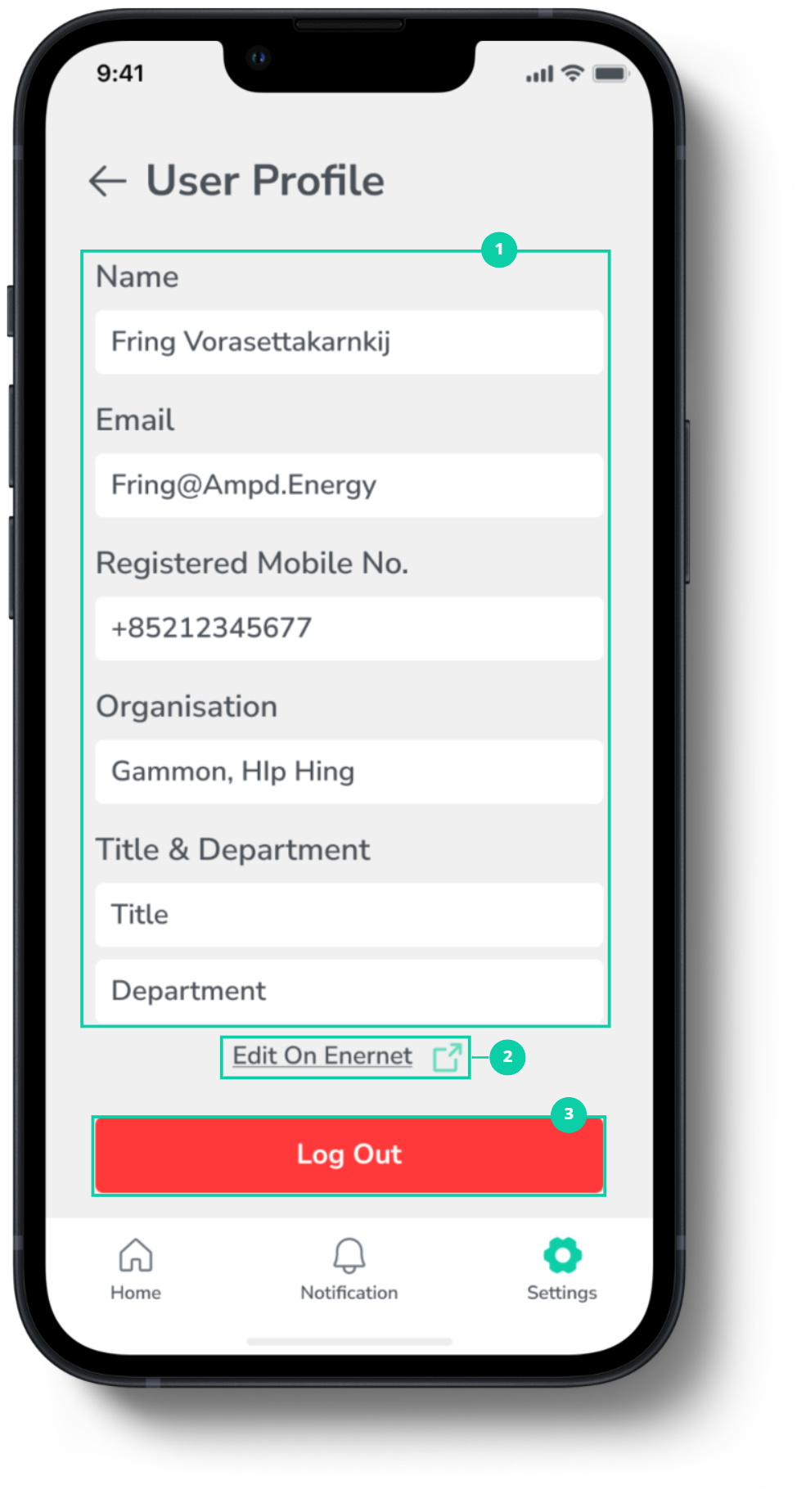
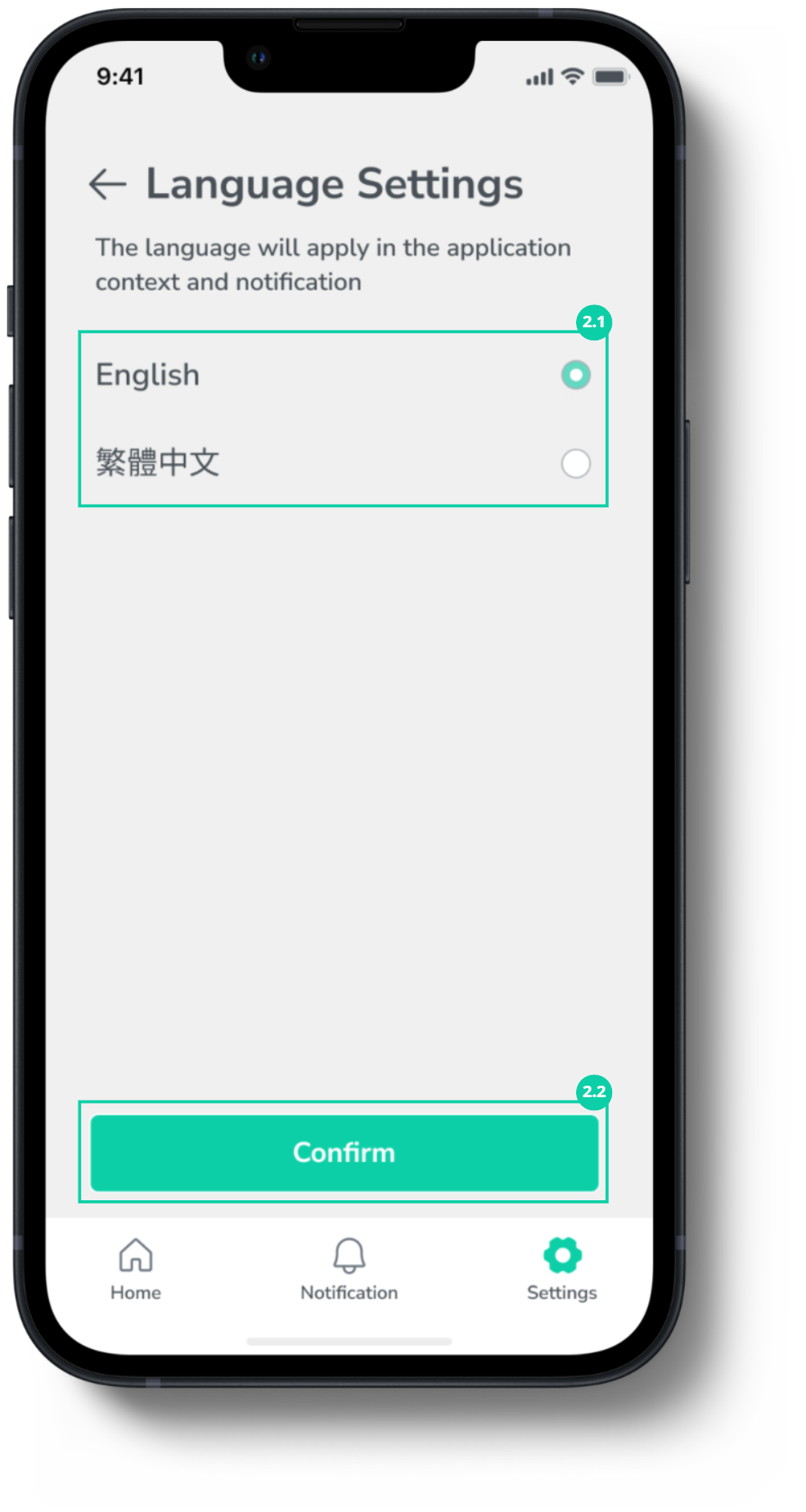
Label | Feature/ Sub feature | Purpose |
|---|---|---|
1 | User profile | Link to page to display name and personal information of the user.  |
1.1 | User profile information | Display account information.
|
1.2 | Edit on Enernet link | Link to Enernet for editing personal information. |
1.3 | Log out button | Button to log out from your Enernet account. |
2 | Language Setting | Link to page to change setting about application language.  |
2.1 | Language input setting | Select to change application languages. Current app version has 2 languages available
|
2.2 | Confirm button | Button to confirm the changes of language that made. |
3 | Notification setting | Link to user’s setting page to change setting about notification.  |
4 | User guide | Link to Enernet mobile app’s user guide in PDF file.  |
5 | App version | Display current application for user’s mobile. |
6 | Terms & Conditions | Link to Enernet’s terms & conditions. |
7 | Pricacy policy | Link to Enernet’s privacy policy. |